
Vendor Choice lets each vendor decide how card processing costs on their sales are handled: participating vendors use dual pricing, and non-participating vendors stay single-priced and pay the card fee on their own card sales. You turn it on once in Settings > Store settings (Financial tab, Card Rate Type), then opt in each vendor on their Settings tab.
Who this is for: Store owners and admins.
These steps use the New Experience. If your menu looks different, click Switch to New Experience at the top of the page.
How Vendor Choice works
Once your store is set to Vendor Choice, every vendor is in one of two groups:
| Vendor status | What happens to their merchandise |
|---|---|
| Participating (opted in) | Their merchandise uses dual pricing. Tags show the credit (card) price, and customers paying cash or check get the cash discount automatically at checkout. The card price covers the processing cost. |
| Not participating (opted out) | Their merchandise stays single-priced. Tags show the cash price and the customer pays the same whether they use cash or a card. When it's bought with a card, the card fee is charged to the vendor through their Syncrostore account rather than absorbed by the store. |
Vendors aren't required to opt in, but opting out doesn't shift the cost of their card sales back to your store.
Your three store pricing options
Only one applies at a time.
| Option | What it does |
|---|---|
| Percentage | Dual pricing for every vendor in the store. Cash discount applied automatically at checkout. No vendor can opt out. |
| Vendor Choice | Each vendor chooses. Participating vendors use dual pricing; non-participating vendors stay single-priced and pay the card fees on their own card sales. |
| None | Traditional single pricing, with no dual-pricing adjustment anywhere in the store. |
Turn Vendor Choice on
Vendor Choice is a store-wide setting, changed once by an owner or admin.
- Go to Settings > Store settings and open the Financial tab. In the Financial section, click Edit.
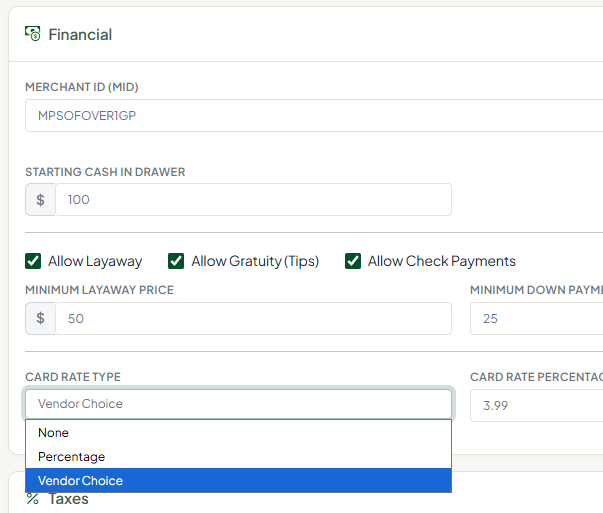
Changing this setting takes effect immediately at the register. Before you switch, read “Rolling it out to your vendors” below — participating vendors may need time to retag merchandise already on the floor.
- Change Card Rate Type to Vendor Choice.
- Confirm Card Rate Percentage is correct. Vendor Choice uses the same percentage for participating and non-participating vendors.
- Click Save.
The change takes effect immediately at the register. Before you switch, read "Rolling it out to your vendors" below - participating vendors may need time to retag merchandise already on the floor.
Opt in each vendor
Turning on Vendor Choice doesn't opt anybody in. Every vendor starts out not participating.
- Go to People > Vendors and click View on the vendor's row.
- Open the Settings tab.
- Under Business, turn on Card price opt-in (Vendor Choice) for a vendor who has agreed to participate. Leave it off for one who hasn't.
- Save. The vendor's Overview tab shows Card price opt-in under Business details.
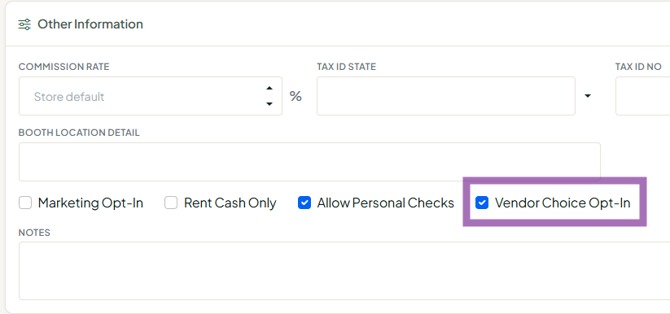
Things to know:
- Every vendor defaults to not participating. A vendor you've never touched is treated as opted out, and card fees on their sales are charged to them.
- It's per store. A vendor who sells in two of your locations is set separately in each.
- You can change it at any time, but it affects sales going forward, not sales already rung. If a vendor switches, their existing tags may no longer show the right price.
The Tag Calculator
The Tag Calculator is in the vendor menu (it opens a pop-up) on stores with card pricing. It uses your store's tax rate, card pricing method and card percentage - and in a Vendor Choice store it knows whether that vendor participates, so the number is correct for them. It has three tabs:
- I Know My Price - the vendor enters what they want to earn and gets the credit price to write on the tag, with the math shown. For a non-participating vendor it shows "You could be earning…", comparing what they'd keep by participating. It's the best screen for explaining the choice to a hesitant vendor.
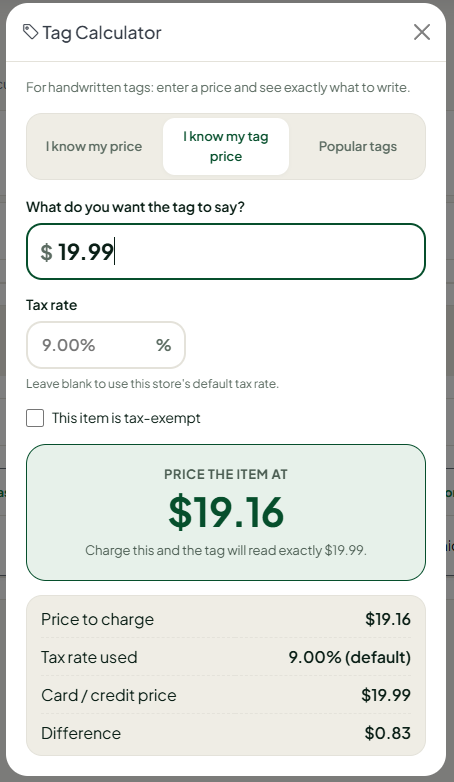
- I Know My Tag Price - the vendor enters the price they want on the tag (say $19.99) and Syncrostore works backward to the selling price that lands closest to it.
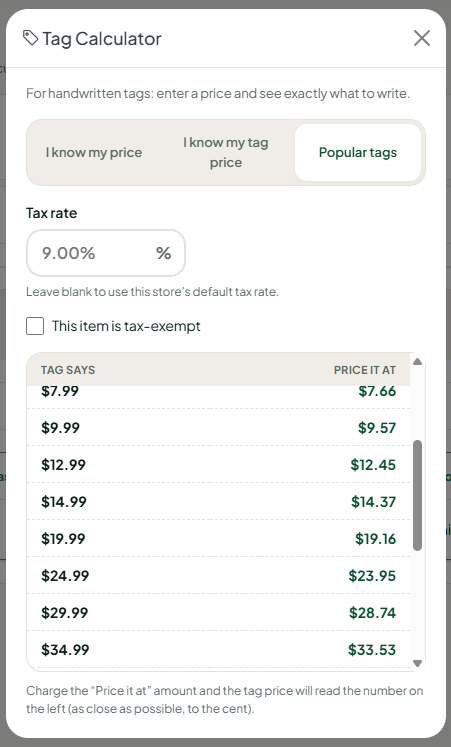
- Popular Tags - common price points ($9.99, $19.99, $29.99, $49.99 and more) with the underlying price already worked out.
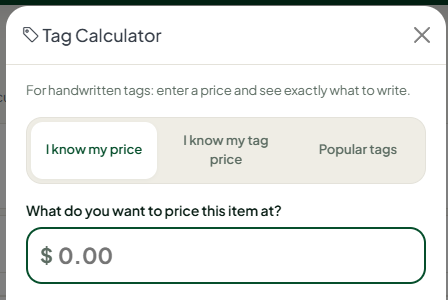
It has three tabs.
1. “I Know My Price”
The vendor enters the amount they want to earn for an item, and Syncrostore calculates the single credit price to write on the tag — with a full breakdown of the math, so they can see exactly where the number came from.
For a vendor who has chosen not to participate, this tab instead shows “You could be earning…” — a side-by-side of how much more they would keep from card-paying customers by participating, rather than paying the card fee themselves. It is the most useful screen you have for explaining the choice to a hesitant vendor.
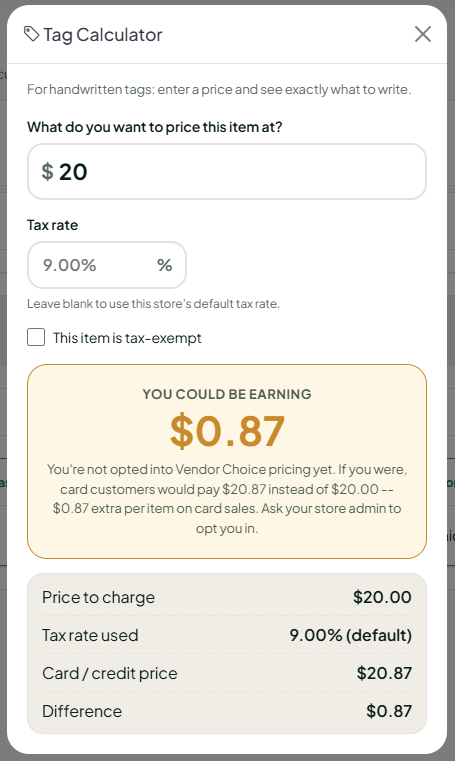
2. “I Know My Tag Price”
Sometimes a vendor wants the tag to land on a specific number — $19.99, say. They enter the price they want displayed, and Syncrostore works backward to find the underlying selling price that brings the final credit price as close as possible to that amount.
3. “Popular Tags”
For a vendor pricing a large batch, Popular Tags lists common retail price points — $9.99, $19.99, $29.99, $49.99 and more — with the appropriate underlying price already calculated for each. Instead of running items one at a time, they can just reference the table as they price.
Adding an item shows what the tag will say
When you add an item (Inventory, then Add Item), the form shows what the tag will say for that item - the price that will print, worked out from the item's price, your pricing method and, in a Vendor Choice store, that vendor's participation. Point this out to vendors: it answers "what number do I put on the tag?"
What happens at checkout
A single sale can mix participating and non-participating vendors. Syncrostore handles it automatically.
- Participating vendor: the card price applies when the customer pays by card. Cash or check gets the cash discount automatically.
- Non-participating vendor: the normal price applies whatever the tender. If the customer pays by card, the card fee is charged to that vendor.
The cashier doesn't need to know who participates, split transactions or work out fees. On a split payment (part cash, part card), a non-participating vendor's fee is based on the share of the sale actually paid by card.
What prints on labels
Standard labels, batch printing, custom sizes and the Label Designer all pick the right price automatically.
| Card Rate Type | Price that prints |
|---|---|
| Percentage (dual pricing) | Both prices - card price and cash price |
| Vendor Choice - participating vendor | Credit (card) price only |
| Vendor Choice - non-participating vendor | Cash price only |
| None | Cash price only |
Rolling it out to your vendors
Give vendors about 30 days before the change takes effect, so participating vendors can retag merchandise on the floor. For example, announce on September 1 and set October 1 as the effective date. During the transition:
- Explain Vendor Choice to your vendors.
- Give each vendor the chance to decide whether to participate.
- Set and share a firm effective date.
- Give participating vendors time to retag existing merchandise with the single credit price.
- Encourage vendors to use the Tag Calculator for handwritten tags.
- Remind vendors that after the change, only one price should appear on their merchandise.
Existing two-price tags still scan fine. Whether their printed prices stay accurate depends on whether that vendor is opted in.
Common questions
- Are my vendors enrolled automatically? No. Every vendor starts out not participating. Opt each one in on their Settings tab after they agree.
- What about a vendor I never set? They're treated as not participating. Their merchandise stays single-priced and card fees on their sales are charged to them.
- Can a vendor change their mind? Yes. Change Card price opt-in (Vendor Choice) on their Settings tab. It applies from that point forward, and their tags may need redoing.
- Does the cashier do anything differently? No. The register applies the right price and fee per item.
- A vendor sells in more than one of my stores. Participation is set per store. Set it in each location.
- Vendors ask why tags show one price now. See Why does my dual pricing store only show one price on the tag now?
