
Press Cash in the right rail.
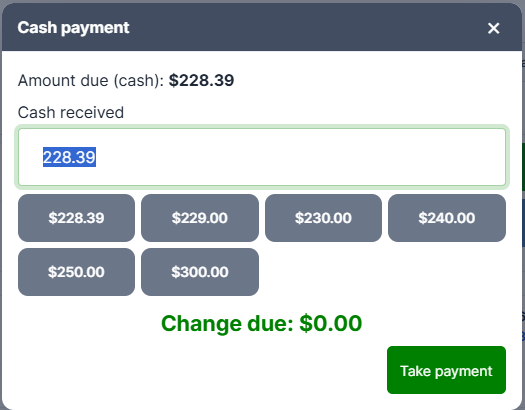
The Cash received box is pre-filled with the exact amount due and selected, so you can type straight over it.
The quick-tender buttons
The row of grey buttons under the box fills in common amounts. They run in ascending order and combine:
- the exact amount
- rounded up to the next dollar, $5 and $10
- the next $20, $50 or $100 above the balance
- any single bill larger than the balance
So a $56.68 sale offers $56.68 · $57.00 · $60.00 · $100.00, and a $3.25 sale offers $3.25 · $4.00 · $5.00 · $10.00 · $20.00 · $50.00 · $100.00.
Pressing one fills in the box — it doesn't take the payment. Check the amount, then press Take payment.
The line underneath
As you type, a line under the box tells you where you are:
- Green — "Change due: $3.32"
- Red — "Partial - $12.50 will remain due"
Use it as your check before committing. It updates on every keystroke.
Taking the payment
Press Take payment, or just press Enter.
If the cash covers the balance, the sale completes, the Sale complete window appears with the change due, and the drawer opens.
If it doesn't, the payment is recorded as a partial and you'll see "Partial: $40.00 paid, $16.68 left". Take the rest on another tender. See Split Payments and Partial Tenders.
Two things worth knowing
Only take as much as you need. If a customer hands you more than the balance, the extra is change — the register never records more cash than the sale is worth.
The drawer opens for any sale containing cash, including a card-and-cash split finished on the card. It needs QZ Tray installed; without it you'll see "QZ Tray isn't available to open the drawer."
