
When the register loads, choose the register you're working at. Card payments go to that register's terminal, and the cash drawer session belongs to that register.
Who this is for: Cashiers and store staff using the register (Sales > Register).
Pick your register
- Open Sales > Register. A list of registers appears, showing each register's name, number, terminal type and serial number. The one you used last on this computer is highlighted.
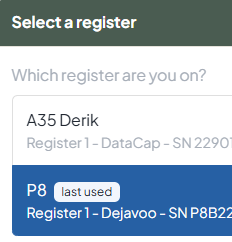
- Click the register you're standing at.
- To change it later, press the register button in the right rail.
Your choice is saved in this browser on this computer, not with your login. On another computer you'll be asked again. That's expected.
Why it matters
- Card payments go to the terminal on the register you pick. Pick the wrong one and the card prompt appears on someone else's pinpad.
- Cash drawer: opening, closing and the Cash Drawer report (Reports > Cash Drawer) are all per register.
- Cash, check, gift card, loyalty and vendor balance payments go through with no register selected, but they aren't tied to any drawer and won't show when you filter reports by register. Always pick your register, even on a cash-only shift.
One login per register
Don't stay signed in with the same login on two registers at once. The two registers share one cart. That can block card payments with "another payment is pending", send charges or refunds to the wrong terminal, and throw drawers off. Give each register its own login, and log out (avatar menu > Log out) before moving to another register.
Customer display
Picking a register also opens the customer-facing display, if your store has it turned on. See Using the Customer-Facing Display.
Troubleshooting
- "No registers are configured for this store": an admin must add one under Settings > Overview > POS hardware (the classic Preferences page, Payment Terminals settings), then reload.
- Card transactions fail on one register: check the right register is selected. Then restart the terminal: unplug it, wait 30 seconds and plug it back in.
- "Select a register first.": pick your register in the right rail.
