
The customer display is a second window showing the customer their own basket as you scan it — items, quantities, prices, discounts and what they owe.
Opening it
Two ways:
- It opens by itself when you select your register, if your store has the display enabled.
- Press Customer Display in the top-right utility bar.
It opens as a separate window and tries to move itself to your second screen and go full-screen. Your browser will ask permission the first time — allow it, or the window just stays where it opened and you can drag it across yourself.
If nothing happens, check for a blocked-popup icon in the address bar: "Allow pop-ups to open the customer display."
What the customer sees
Before anything is scanned — your store logo and name, and "Please wait while we ring up your order". It returns to this between customers.
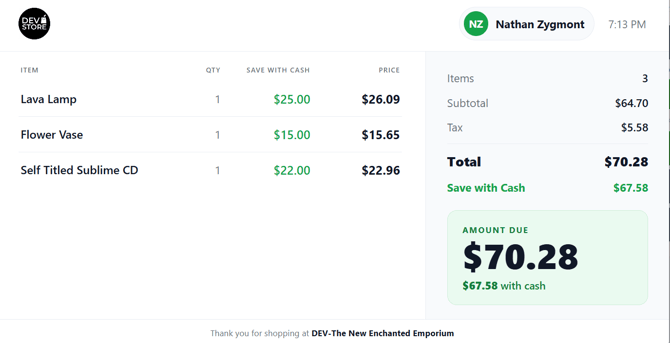
During a sale — the item list, with tags for gift cards, rent and layaway lines, and a totals panel showing Items, Subtotal, Discounts, Tax and the amount due. There's a clock, and once you attach a customer, their name and point balance.
If your store charges a card surcharge, the display shows both prices with a Save with Cash column, and the amount due panel shows the cash figure underneath. It works this out on its own from your prices — there's nothing to configure.
It looks after itself
- It refreshes about once a second while you're scanning, and slows down when the sale isn't changing, so it's not constantly flickering.
- If the connection drops it shows "Reconnecting…" in the corner and recovers on its own.
- You can't open two by accident. Press the button again and the existing display comes to the front rather than opening a second one.
- If it crashes or is closed, pressing the button opens a fresh one within a few seconds.
Between customers
There's no "thank you" screen. When a sale completes the basket empties and the display returns to the welcome screen, ready for the next customer.
