
Standard PDF Printing (Recommended for Most Users)
The default Syncrostore printing workflow generates PDF labels that can be printed using:
- Your operating system print dialog
- Adobe Acrobat
- Preview on macOS
- Manufacturer printer software
- Third-party label printing utilities
- The selected label size matches the labels loaded in the printer. This is the most common cause. Pick the matching size in Select Label Size.
- Your printer’s own media/label size is set correctly in its Windows/macOS preferences, with rotation set to 0 on non-Dymo thermal printers.
- Scaling is off — set 100% / disable “Fit to Page” / “Fit to Printable Area.”
- On a Custom label, the Printer type matches your printer (iDPRT & other vs. Dymo LabelWriter).
- The correct printer is selected, with current drivers installed.
- Select only the items you want to print (use Sort → Not Printed).
- Confirm your label size (and printer media) before printing.
- Use 1:1 scale (no scaling/fitting) — especially for inkjet sheets.
- If something looks off, compare it to the preview first.
- Attend vendor training before launch; review KB articles and videos before contacting support.
- Syncrostore generates labels as shown in the preview.
- Most print problems come from a label-size mismatch (in Syncrostore *or* the printer’s own settings) or scaling.
- Custom label sizes save to your account and follow you across computers.
- The standard PDF workflow remains fully supported and recommended for most users.
This workflow is the most compatible, the easiest to troubleshoot, and recommended for most vendors. Many vendors successfully use the standard PDF workflow daily without any additional software installed.
Integrated Printing with QZ Tray
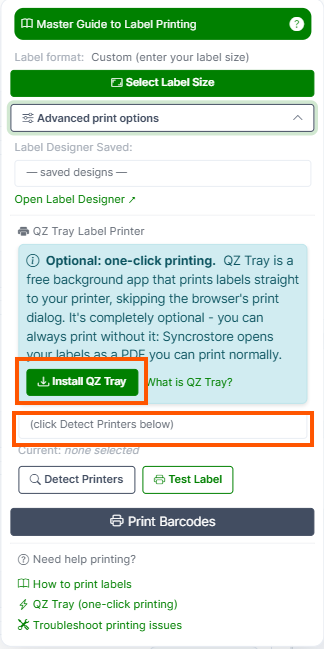
Syncrostore also supports integrated printing using QZ Tray, which sends print jobs directly to your locally installed printer without opening the browser print dialog. It is recommended for high-volume environments, dedicated POS workstations, and faster workflows.
QZ Tray setup: https://support.syncrostore.com/knowledge-base/integrated-label-printing-qz-tray
Download QZ Tray: https://qz.io/download/
Step 1: Select the Correct Items
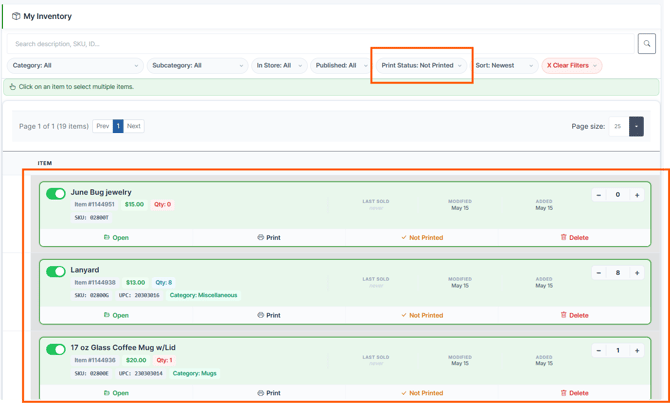
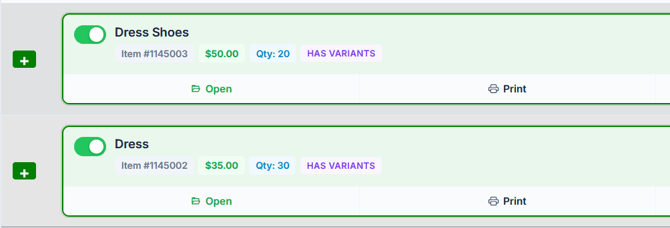
Before printing, select the specific inventory items you want labels for. Click the inventory item; selected items will change to a light green color.
Important: If you do not select any items and click Print Barcodes, Syncrostore generates labels for *all* inventory items. Manually select only the items you want.
Tip: Click Sort → Not Printed to quickly find inventory that still needs labels. Items are automatically marked “Printed” after you print them.
Step 2: Choose Your Label Size
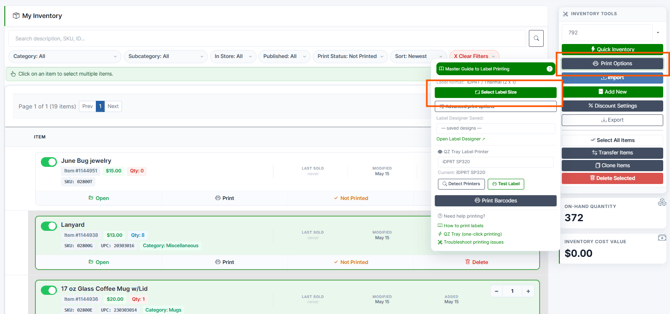
Open Print Options, then click Select Label Size. A visual picker opens showing every supported label, drawn to scale, so you can match the labels physically loaded in your printer.
- Choose your printer brand at the top: Dymo, iDPRT & Others, or Inkjet Sheet.
- Choose No Dual Pricing or Dual Pricing.
- Click the tile for your label (for example, Dymo 30252 or Dymo 30347). The current format is shown next to the button as “Label format: …”
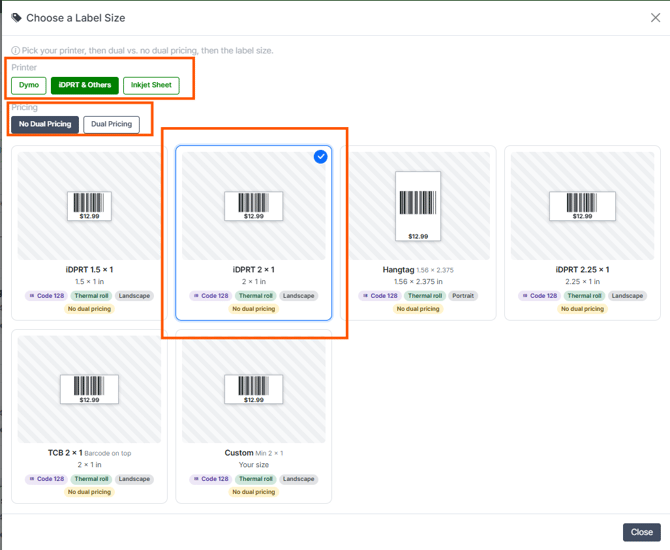
Read the tags under each label — they tell you the barcode type (QR code or Code 128), whether it’s a thermal roll or an inkjet sheet, the orientation, and whether it includes dual pricing.
Printing on a regular desktop printer (no label printer)? Choose Inkjet Sheet. There are three sheet options — Avery 5160 (30 per sheet), Avery 8167 (80 per sheet), and PLS892 (40 per sheet). Sheets must be printed at 100% / Actual Size (never “Fit to Page”) or the rows drift down the page.
Dual Pricing Stores
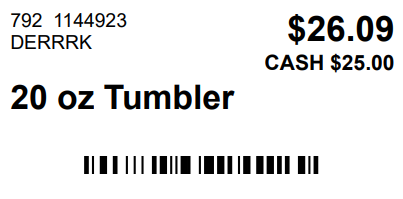
Choose a Dual Pricing label in the picker. On a dual-pricing label, the regular (credit) price prints large and bold, with the smaller “CASH” discounted price beneath it. If you choose a non–dual-pricing label in a dual-pricing store, both prices will not appear.
Custom Label Sizes
If your label isn’t one of the presets, pick Custom (enter your label size) in the picker.
- Enter the width and height in inches. The supported range is 2″ × 1″ minimum up to 4″ × 3″ maximum.
- Check which fields to include: Vendor ID, Item ID, SKU, Description, Variant Details, and Credit Price. (Price always prints.)
- Choose the Barcode type: Standard barcode (Code 128) — recommended, reads on every scanner — or QR code (only if your scanners read QR codes).
- Choose the Printer type: iDPRT & other label printers (the default; fills the whole label) or Dymo LabelWriter (adds the margin Dymo printers need).
Your custom size is saved to your account — once you’ve printed with it, it follows you to any computer you log in from.
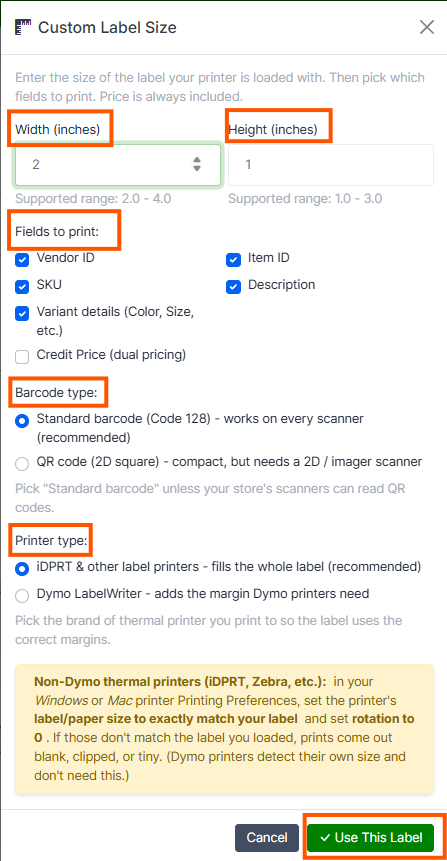
Note: The old “My labels load sideways (swap width & height)” checkbox has been replaced by the Printer type choice. Selecting iDPRT & other vs. Dymo LabelWriter now handles orientation and margins automatically — there’s nothing to swap.
If a Custom Label Prints Clipped, Tiny, or Only Fills Part of the Label
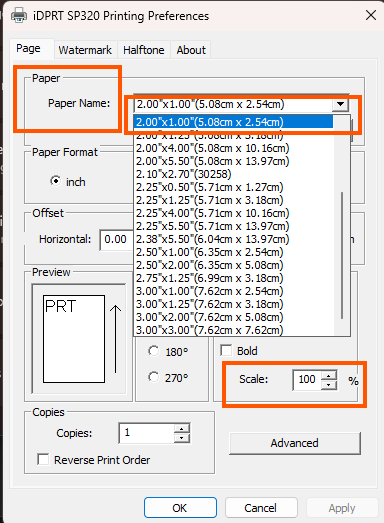
This is almost always the printer’s own media setting, not Syncrostore. On non-Dymo thermal printers (iDPRT, Zebra, etc.), open your Windows or Mac printer *Printing Preferences* and set the label/paper size to exactly match your label with rotation set to 0. If those don’t match the label you loaded, prints come out blank, clipped, or tiny no matter what you choose in Syncrostore. (Dymo printers detect their own size and don’t need this step.)
Step 3: Print Labels
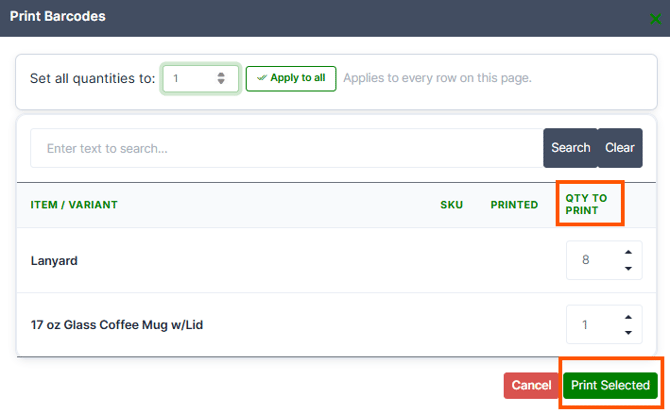
- Click Print Barcodes.
- Review the preview screen.
- Adjust Quantity to Print if needed — Syncrostore pulls each item’s quantity from inventory automatically.
- Click Print Selected.
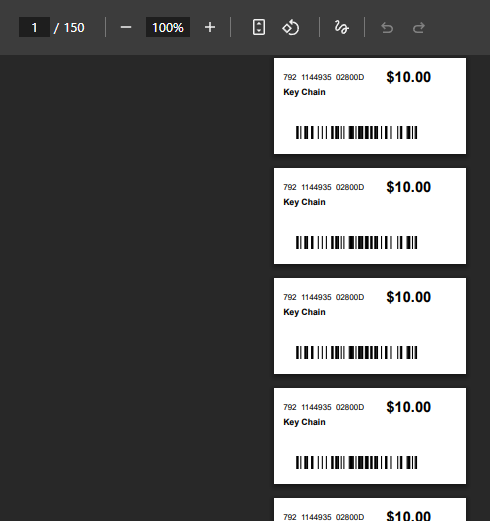
Syncrostore generates a PDF of your labels. Review it before printing, then print with your browser’s standard print function set to 100% / Actual Size (not “Fit to Page”).
Step 4: Printing a Single Label
To print one label, click Print Label on the inventory item. Syncrostore uses your currently selected label size.
Preview vs. Printer Output
What you see in the preview/PDF is what Syncrostore sends to the printer. If the preview is correct but the printed label is wrong, the cause is almost always one of these — check them in order:
Using QZ Tray? Make sure the label size you pick matches both your label stock and your printer’s media setting. If labels clip or print rotated through QZ Tray, update to the latest Syncrostore and try again.
Barcode Types
Stock labels print either a Code 128 barcode or a QR code, chosen per label format (shown by the tag under each tile in the picker). On a Custom label you choose Code 128 or QR yourself.
For variant items, the barcode encodes the specific variant, so scanning it at the register adds the exact variant automatically. For non-variant items, it encodes the item’s ID. This is automatic — you don’t configure it.
If a barcode won’t scan, compare the printed label to the preview, verify your printer’s darkness and label-size settings, ensure scaling/fitting is disabled, and confirm the label printed clearly without distortion.
Having Trouble with QZ Tray?
If integrated printing isn’t working in your environment, you can uninstall/disable QZ Tray and return to the standard PDF workflow, which lets you control printer settings directly through your OS and printer software. QZ Tray setup is under Advanced print options in the Print Options menu.
Best Practices
- Select only the items you want to print (use Sort → Not Printed).
- Confirm your label size (and printer media) before printing.
- Use 1:1 scale (no scaling/fitting) — especially for inkjet sheets.
- If something looks off, compare it to the preview first.
- Attend vendor training before launch; review KB articles and videos before contacting support.
Summary
- Syncrostore generates labels as shown in the preview.
- Most print problems come from a label-size mismatch (in Syncrostore *or* the printer’s own settings) or scaling.
- Custom label sizes save to your account and follow you across computers.
- The standard PDF workflow remains fully supported and recommended for most users.
