
QZ Tray is an optional free app that sends labels straight to your label printer in one click, without opening a PDF. You don't need it. If it causes problems, turn it off and print from the PDF.
Who this is for
- Store admins and staff on busy checkout computers, and vendors who print a lot of labels
- Anyone who wants to turn QZ Tray off
Before you start
- Get PDF printing working first. QZ Tray uses your printer's existing settings: label size, darkness, orientation and calibration. It won't fix a printer that can't print the PDF correctly.
- Install your printer driver and make sure your computer can print a test page.
- QZ Tray works best with the iDPRT SP310/SP320 and DYMO LabelWriter. TSC and some Zebra printers often don't work reliably with it.
- QZ Tray runs on Windows and Mac computers only.
Set up one-click label printing
- Download and install QZ Tray from qz.io/download.
- Restart your computer, then make sure QZ Tray is running (look for its icon in the system tray or menu bar).
- Open Syncrostore and refresh the page.
- Go to Inventory, then open ⋮ > Label settings (or click Print labels).
- At the bottom, open One-click printing (QZ Tray) and click Detect printers.
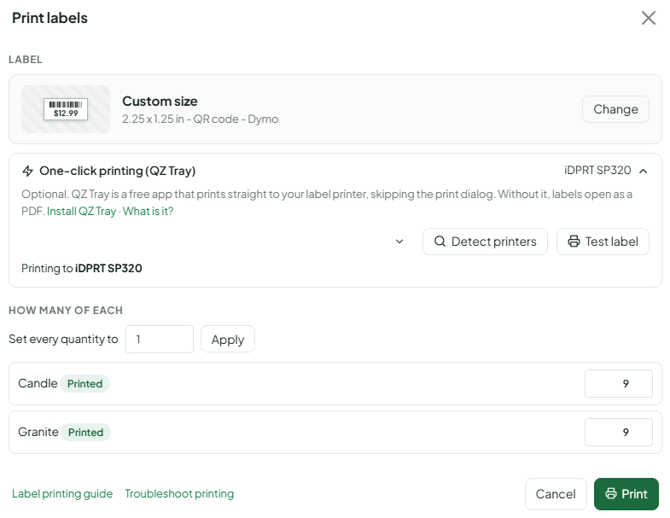
- When QZ Tray asks for permission, tick Remember this decision and click Allow. You only need to do this once per computer.
- Select your label printer and click Test label. If the test label prints correctly, you're set up.
- Make sure the Label you picked matches the labels loaded in the printer, and that the printer's paper size is set to the same size.
Set up QZ Tray on each computer separately.
Receipt printers and cash drawers
For the register, the receipt printer and cash drawer also use QZ Tray. They're set separately, by an admin, on each computer: Settings > Store settings > POS Hardware tab. Select the receipt printer there, and set the label printer in Inventory as above, so you never have to switch between them.
Turn QZ Tray off (go back to the PDF)
Use one of these:
- In One-click printing (QZ Tray), clear the printer. It then reads "Off – labels open as a PDF".
- Right-click the QZ Tray icon in the system tray (Windows: the up-arrow at the bottom right) and choose Exit.
- Uninstall QZ Tray. On Windows, use Settings > Apps. On a Mac, remove it from the Applications folder.
Troubleshooting
- Labels print automatically and wrong, but I wanted the PDF: QZ Tray is on. Turn it off (above) and check the PDF.
- "Invalid signature" / "Cannot verify trust" pop-up, or clicking Allow signs me out: install the latest QZ Tray from qz.io/download, restart the computer, sign in, print once and choose Remember this decision + Allow.
- Detect printers finds nothing: make sure QZ Tray is running, then click its icon and choose Restart. Still nothing? Restart the computer and the printer. Check the printer appears in your computer's printer list.
- QZ Tray says it printed but nothing came out: common with TSC and Zebra printers. Turn QZ Tray off and print from the PDF.
- Blank, tiny or cut-off labels: the printer's paper size doesn't match the label. Fix it in the printer's Printing preferences (see the Master Guide, Step 6).
- Nothing happens at all: allow pop-ups for Syncrostore and hard refresh (Ctrl+F5).
