
Open the original sale's Transaction Details from Sales > Transactions, check the right terminal is selected, press Credit Return, choose the items, and press Complete Return - the customer then inserts their card on the terminal.
Who this is for: Cashier, Store admin
These steps use the New Experience. If your menu looks different, click Switch to New Experience at the top of the page.
Steps
- Go to Sales > Transactions, find the sale, press View, then Open transaction.
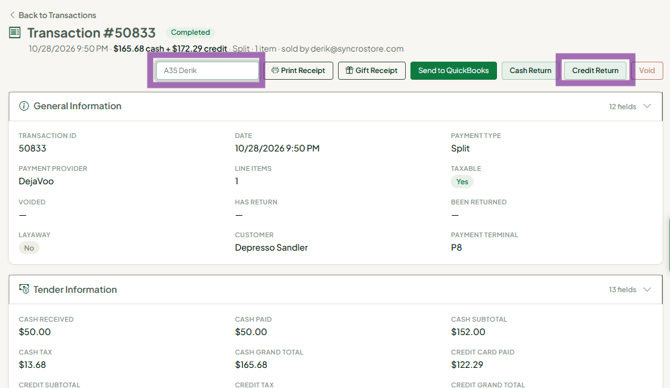
- On the Transaction Details page, check that the correct terminal is selected at the top.
- Press Credit Return.
- Select the items being returned, or tick Full Refund for everything.
- If the items should go back into inventory, tick Return to Inventory.
- Press Complete Return. The refund is sent to the terminal, and the customer inserts their card to receive it.
- When it's done, a green banner shows the return's transaction ID.
Troubleshooting
- The refund went to the wrong terminal: the terminal selected at the top of Transaction Details is the one used. Check it before pressing Complete Return.
- The sale is from today: you can Void it instead of returning it. A void usually doesn't appear on the customer's statement.
