
Go to Sales > Transactions, pick a date range, and type the Transaction ID (from the receipt), a customer, a vendor, an item or a SKU into the search box.
Who this is for: Cashier, Store admin
These steps use the New Experience. If your menu looks different, click Switch to New Experience at the top of the page.
Steps
- Go to Sales > Transactions.
- Choose a date range: Today, Yesterday, Last 7 days, Last 30 days, This month, Last month, or Choose dates....
- Type into the search box ("Transaction #, customer, vendor, item or SKU"). If you have the receipt, search by its Transaction ID.
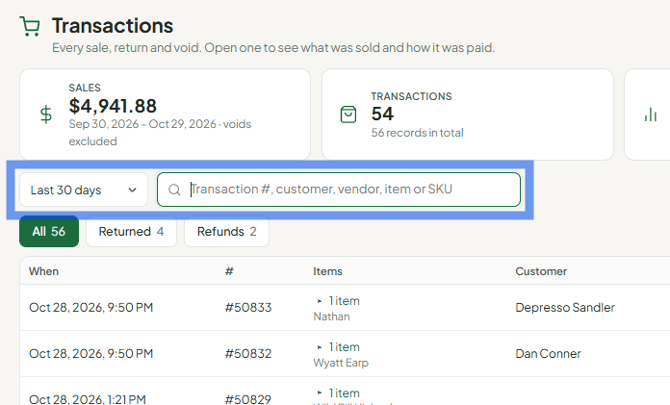
- Narrow the list with the chips if needed: All, Voided, Returned, Refunds, Layaway, Store charge.
- Press View on a row to see what was sold and how it was paid.
Things to know
- The list shows When, Items, Customer, Payment and Total. Click the chevron next to "N items" to see the lines grouped by vendor.
- The cards at the top (Sales, Transactions, Average sale, Voids & returns) cover the date range and search you picked. Voided sales are left out of Sales.
- The top-bar search ("Search anything...") also finds a transaction by its exact number.
Troubleshooting
- The sale isn't listed: check the date range first - the search only looks inside the dates you picked. Try Choose dates... with a wider range.
