
Syncrostore barcodes and QR codes hold an internal code (the global item code) that Syncrostore assigns to each item. It is not your SKU, UPC or Item ID, so a scanned value won't match those numbers, and that's expected.
Who this is for: Vendors and store staff asking why a scanned label doesn't match the SKU, and anyone using labels in more than one store or with another system.
These steps use the New Experience. If your menu looks different, click Switch to New Vendor Experience (vendors) or Switch to New Experience (Beta) (staff) at the top of the page.
How it works
- Each item, and each variant, gets its own code. This code is what the label encodes.
- Scanning the label at the register adds that exact item or variant.
- Changing an item's SKU or UPC doesn't break labels you've already printed.
- SKU, UPC and Item ID still work. You can type or search any of them at the register, and they appear in reports.
- Older labels that encoded the SKU or Item ID still scan.
- The small Jewelry 30299 tag encodes the Item ID instead, because the code has to be short to fit.
Finding an item by scanning its label
The Inventory page search box ("Search items by name, SKU, or description...") looks for item details (description, SKU, UPC or item number), not the label code, so scanning a label into it finds nothing. To look an item up by scanning:
- Go to Inventory.
- Open More (⋮) > Classic view.
- On the classic inventory page, click the Scan Universal ID box at the top right, then scan the label.
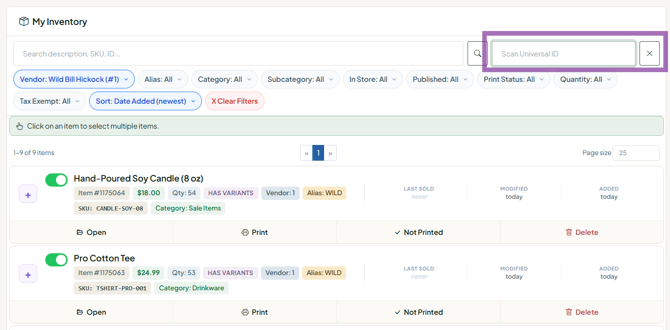
Or search the new Inventory page by the SKU or Item ID printed on the label.
Using labels in more than one store
A label scans in another store only when the item was sent there with Transfer (tick the items on Inventory, then Transfer in the bar that appears). An item you created separately in each store has a different code in each store, so print labels in each store. Vendor numbers also differ by store.
After a transfer, print labels at the receiving store. Labels printed beforehand may not scan there, especially for items with sizes or colors.
Using your own barcodes or another system
- The label code isn't shown in Syncrostore or included in exports, so you can't copy it into another system.
- To use your own pre-printed barcodes (for example, manufacturer UPCs), put that barcode value in the item's SKU or UPC field. The register finds the item when you scan it. Syncrostore-generated labels are still recommended.
- If you print labels with another system, encode the Item ID, SKU or UPC. All three are found at the register.
Troubleshooting
- "Item not found" when I scan on the Inventory page: use Scan Universal ID on the classic view (see above), or search by SKU or Item ID.
- One scan matches two items: this can happen after imports or transfers. The register asks the cashier to pick the matching item. Compare description, vendor and price.
- A label won't scan at the register: the cashier can type the Item ID printed on the label or search by description. Then see How to Fix barcode labels not scanning.
- Labels stopped scanning after a transfer: reprint them at the receiving store.
