
Switch to the Payments tab above the cart.
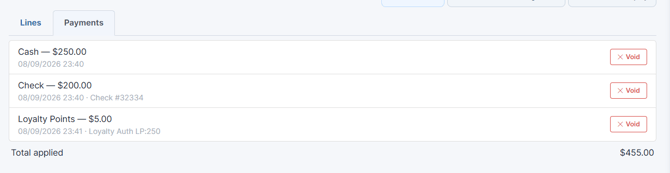
Each row shows the tender type and amount, with the date, card type, masked card number, gift card number, check number or auth code underneath. Total applied at the bottom matches the PAYMENTS line on the Lines tab.
Before any payments you'll see "No payments have been applied to this sale yet."
Voiding a payment
Press Void on the row.
Cash, check, gift card, loyalty and vendor balance — you'll be asked "Remove this payment from the sale?" Nothing was captured, so the tender is simply removed and the balance re-opens.
Card payments — you'll be asked:
Void this card payment? This reverses the charge on the terminal.
The register contacts the terminal and reverses the charge before releasing the payment. You'll get confirmation such as "Card reversed at terminal (APPROVED) - ref 000142."
When a card void doesn't go through
If the charge was approved but the terminal reversal fails, the void is refused and the payment stays on the sale:
Could not void the approved card payment at the terminal. The authorization is still live - try again, or process a refund directly on the payment terminal.
That's protecting you — releasing the payment while the money is still captured would leave the sale short and the customer charged. Try again, or refund on the terminal itself.
On an external terminal there's nothing to call, so you'll see "Removed - void this charge on the terminal directly." — the sale is corrected but you must void it on the terminal yourself.
Do this before Clear All
If you're abandoning a part-paid sale, void the card payments here first. Clear All empties the sale but doesn't reverse anything at the terminal
