
Syncrostore now has easy consolidation for people who have multiple vendors.
What consitutes as a multiple vendors?
- Any Vendors you have that are under the same login email, if you own multiple vendors but they are under different emails, they will not show up here.
- Within each Vendor report and the dashboard, if you have multiple vendors they will show up under the "Store Selector" on the left side of the menu
Note: If you don't see a vendor you are supposed to see, first check their email and make sure its the same. Otherwise please contact support
Vendor dashboard Demo:
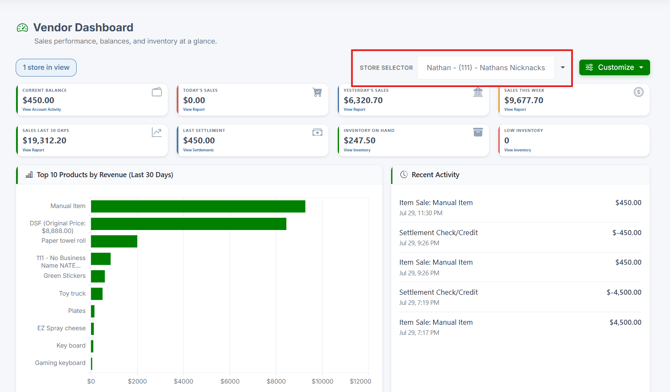
The drop down is structured as Name, Vendor ID, Store Name
In this example, the Highlighted row's name is Nathan, with Vendor ID 111 at the store "Nathans' Nicknacks"
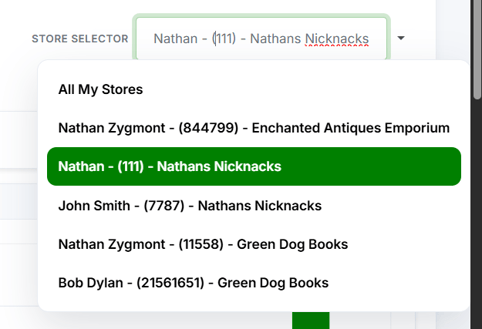
You can also select "All My Stores" Which will show data for every vendor that is listed in your drop down.
If you are on a vendor report, selecting "All My Stores" will provide a clickable breakdown of the KPI cards to show how the sum is derived.
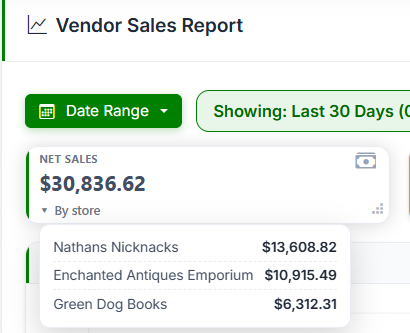
Above is an example of the Vendor Sales report
- Clicking on the "By store" carrot will expand this popup to show each store's performance, all vendors within each store are grouped together.
