
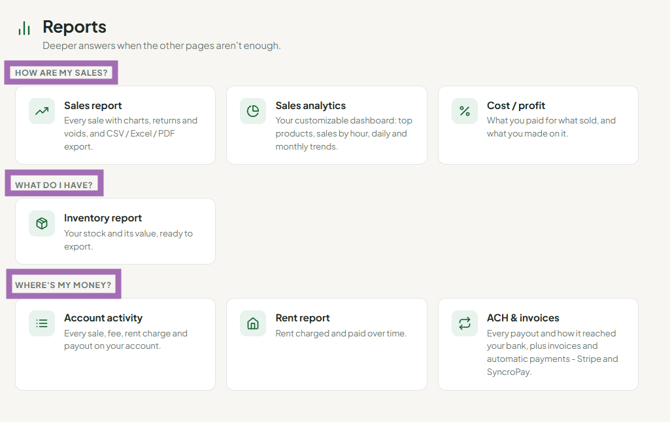
Click Reports in the menu and pick a report under How are my sales?, What do I have? or Where's my money?. Most reports open the classic report page, where you choose the store with the Store Selector (top right), set dates with Date Range (top left) and download with Export (top right).
Who this is for: Vendor
These steps use the New Experience. If your menu looks different, click Switch to New Vendor Experience at the top of the page.
Available reports
- How are my sales?
- Sales report: what sold in a date range. See "Why doesn't my Vendor Sales Report match my check? (vendors)".
- Sales analytics: the older customizable dashboard with charts and trends.
- Cost / profit: profitability, based on the Cost you enter.
- What do I have?
- Inventory report: what you have on hand.
- Where's my money?
- Account activity: every line on your balance.
- Rent report: rent charges, credits and deposits.
- ACH & invoices: every payout to you and how it reached your bank, and every invoice or automatic payment you paid the store.
For a quick view of sales, use Sales in the menu instead. It has Export for CSV, Excel (.xlsx) and PDF. The older list of reports is still available from Classic reports page.
On a classic report page
Choose store and dates
- Store Selector (top right): choose one store/vendor or All My Stores. Only stores where your login email is registered as a vendor appear. This only changes which numbers you see; it doesn't switch stores.
- Date Range (top left): pick a preset (Today, This Month, Last Month...) or custom dates. The cards, charts and grid all update.
Work with the grid
- Search: the search box above the grid searches all columns.
- Filter a column: click the funnel next to a column name, then choose the filter type (contains, starts with, equals) and value. Filtered columns turn blue.
- Sort: click a column title (descending, ascending, then off).
- Group: drag a column header into "Drag a column header here to group its column".
- Choose columns: click Columns in the toolbar at the top left of the grid, next to the search box, and tick the columns you want, for example SKU. Your choice also applies to exports.
- Pages: use the controls under the grid to change pages or page size.
Export and print
- Pick a format from the dropdown next to Export at the top right, then click Export.
- Filters, chosen columns and the date range apply to the export. To get every row in a PDF, set the page size to All first.
- Reports are for your records; they're not official tax documents.
Customize
Click Customize to hide, move or resize cards and charts. Customizing the grid doesn't change the cards.
Troubleshooting
- "No transactions found" or missing rows: check the Date Range and Store Selector, then look for a blue (filtered) column and clear it.
- Export does nothing: refresh and try again in Chrome; contact support if it persists.
- The Store Selector list closes when I drag its scroll bar: scroll with the mouse wheel inside the list.
- I need a report that doesn't exist: Click the Profile icon in the top right corner and select Request a feature.
