
The Inventory page is where you find, edit, print labels for, transfer and remove your items. Each item is a row in a table; use the search and filters to find it, the ⋯ row menu to work on one item, and the checkboxes plus the bulk bar to work on several.
Who this is for: Vendor
These steps use the New Experience. If your menu looks different, click Switch to New Vendor Experience at the top of the page.
Getting there
- Log in at your store's address (
<store>.mysyncrostore.com) and click Inventory in the menu. - Inventory is per store and per vendor number. To change store, or to change vendor number if your login has more than one at this store, click the store name ▾ in the top bar. In the Switch store or vendor dialog, pick under Vendor account at this store or Stores.
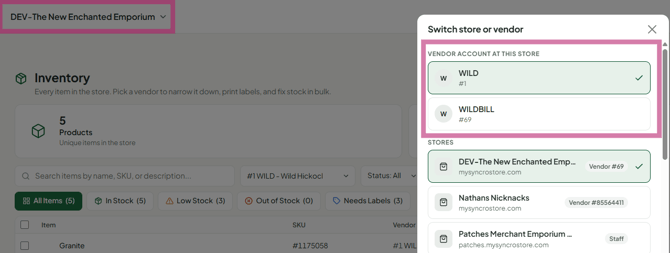
- If you see "Inventory management is turned off for your account. Contact your store owner.", your store has turned off inventory access for you. You can still view items, but editing actions are hidden. Ask the store to turn it on.
The page header
- Add Item (green): opens the item form in a pop-up titled "Add item".
- Import: opens the import wizard to add many items from a spreadsheet.
- Export ▾: CSV, Excel (.xlsx) or PDF. It exports the items you have ticked; if none are ticked, the items matching your filters; otherwise everything. CSV and Excel files use the import template format.
- More (⋮):
- Print all labels not printed
- Label settings
- Print vendor labels (blank labels with your vendor number; see "Labels" below)
- Bulk price / quantity update (opens the classic bulk update page)
- My sales & deals (opens Promotions)
- Classic view (opens the classic inventory page)
- Cards across the top: Products (unique items in your booth), Units in Stock and Retail Value.
Search, filter and sort
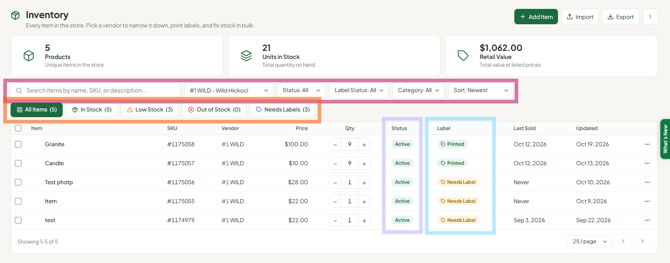
- Search: type in the box "Search items by name, SKU, or description...".
- Status: All / In store / Not in store.
- Label Status: All / Printed / Needs label.
- Category: All, or one of the store's categories.
- Sort: Newest, Oldest, Recently updated, Name A-Z, Name Z-A, Price high-low, Price low-high, Qty high-low, Qty low-high.
- Quick chips: All Items, In Stock, Low Stock (1 to 3 left), Out of Stock (0 or less), Needs Labels.
- Items missing? A filter or chip is probably on. Click All Items and set the filters back to All.
Reading the table
Columns: a checkbox, Item (photo and description), SKU, Price, Qty, Status, Label, Last Sold ("Never" if it has not sold), Updated, and the ⋯ row menu.
- Qty: click − or +, or type a number. It saves straight away.
- Status pill: Active, Not in store or Out of Stock.
- Label pill: Printed or Needs Label.
- Variants: items with variants have an arrow ("Show variants"). Expand it to see each variant and change its quantity.
- Choose 25, 50 or 100 items per page at the bottom.
Row menu (⋯)
- Edit item: opens the item form in a pop-up.
- View details: opens the item panel (below).
- Print label: prints labels for this item.
- Clone item: makes a copy you can edit.
- Mark as printed / Mark as needs label.
- Put in store / Take out of store.
- Delete: removes the item permanently.
The item panel (View details)
Shows the photo, price and stock, with Edit, Adjust (change the quantity), Print Label, Clone Item and Transfer.
- Details: Last Sold, Date Added, Category, UPC, Location, Vendor, In store, Label and Description.
- Sales History: Date, Qty, Sale and Net for each sale.
- Notes: add notes in Edit Item.
- The panel's Transfer button opens the classic inventory page. To use the new transfer window, tick the item and use Transfer in the bulk bar.
Working on several items (bulk bar)
- Tick the checkbox next to each item. A bar appears showing "N selected".
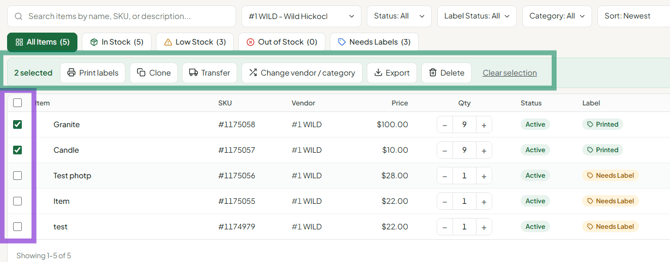
- Choose Print labels, Clone, Transfer, Export ▾ or Delete.
- Clear selection unticks everything.
To fit more items on one page before ticking, set the page size to 100.
Labels
- Click Print labels in the bulk bar (or Print label in a row menu).
- In the Print labels window, check the Label card. Click Change to pick your Printer (Dymo / iDPRT & others / Inkjet sheet), the label format, and Barcode or QR code.
- Under How many of each, set the number of labels per item (this does not change your quantity). Set every quantity to + Apply fills them all.
- Click Print. Labels open as a PDF unless you have turned on one-click printing (QZ Tray) in Label settings.
- More (⋮) > Print all labels not printed prints every item marked Needs Label that matches your filters.
- More (⋮) > Print vendor labels prints blank labels with only your vendor number and alias and a barcode. Write the item and price by hand; the register opens a manual item for you when it is scanned. They work at this store only.
- Prices on tags follow the store's pricing setting: dual pricing prints both prices, Vendor Choice prints the credit price only, and stores with neither print the cash price.
On a phone
Inventory is easiest on a computer. The mobile app can't print labels, upload photos or delete items.
Troubleshooting
- My items disappeared: click All Items, set Status, Label Status and Category to All, clear the search box, then check the store name and vendor number in the top bar.
- I can't see Edit, Delete or the bulk bar: inventory management is turned off for your account. Contact your store owner.
- Buttons don't respond or prices show $0 after an update: do a hard refresh (Ctrl+F5 / Cmd+Shift+R).
- Inventory value on the dashboard looks wrong: it uses each item's Cost, not its price.
