
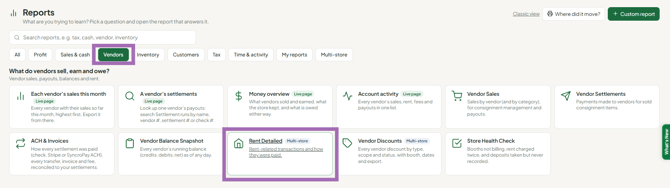
Open Reports, and under Vendors choose Rent Detailed. It lists every rent charge, payment, credit, fee and deposit on your vendors' accounts for the dates you choose - one row per vendor per entry - whether it was rung on the register or entered on Money > Rent & fees.
Who this is for: Store admins.
These steps use the New Experience. If your menu looks different, click Switch to New Experience at the top of the page.
Use it to confirm a vendor's rent came in, review deposits taken, or check where balances stand. For today's numbers without the report, Money > Rent & fees shows Vendors owe the store and Deposits held, and its Balances tab lists each vendor.
Open the report
- Go to Reports.
- Under Vendors, choose Rent Detailed. (It's also a tile on Store Management > Overview.)
What it shows
Rows come from each vendor's account, so admin entries (the monthly rent run, credits and fees, recurring fees, deposits) appear alongside rent and deposits taken at the register. Ordinary merchandise sales and settlement payouts don't appear.
Pick the dates with Date Range at the top (it starts on Last 30 Days), or type custom dates in the box beside it.
Main columns: Date, Vendor ID, Vendor Name, Space #, Source, Type, Ledger Type (the entry exactly as it's recorded on the vendor's account), Charged, Paid / Credited, Deposit, Balance Now and Trans ID. More columns, such as Payment Type, Cashier, Entered By, Tax and Balance After, can be added with Columns above the grid.
Summary cards
- Rent & Fees Charged - total charged to vendors in the date range.
- Paid & Credited - payments and credits in the date range.
- Deposits - deposits taken in the date range.
- Outstanding Balances - what vendors owe the store right now.
Two charts show Paid & Credited by Source and Rent & Fees Charged by Month.
Outstanding Balances and Balance Now are current. They reflect where balances stand today, not on the date of each row, and match Vendors owe the store on Money > Rent & fees.
Customize
Select Customize (top right) to show or hide columns and panels. Your choices also carry through to exports.
Export
- Set any column filters first, so the report on screen matches what you want to send out.
- Pick a format from Export Format: CSV, Excel (XLSX) or PDF.
- Select Export.
The file contains exactly what's on screen - same filters, sort and visible columns. It builds in your browser, so the page won't reload.
Tip: use CSV or Excel for bookkeeping and rent rolls; use PDF when a vendor or landlord needs a copy as-is.
Multi-store viewing
If your store belongs to a group, a store scope picker appears in the header with the group name and store count beneath it.
- Choose a scope to report across every store at once; a Store column is added.
- Each summary card gains a By store link showing the figure split per store.
- Customize and Export apply to the whole scope.
If your store isn't in a group, the picker is hidden and the report covers your store only.
FAQ
- Is Balance Now what the vendor owed at the time of this entry? No. It's their balance right now, repeated on each of their rows. Add the Balance After column for the running balance after each entry. Don't add up Balance Now.
- Why doesn't Paid / Credited show cash vs card? One payment can cover several vendors, so the report shows how it was taken in Payment Type (add it with Columns), not split dollars per tender.
- How do I find refunded rent? Look for rent payment returns in the Ledger Type column, or filter Payment Type to Cash Return or Credit Return.
Troubleshooting
- One of my stores is missing from a group view. A store is left out if its data can't be reached at that moment; the rest of the group still reports normally. If it stays missing, contact support.
- Nothing shows up at all. Clear any column filters still applied from an earlier look, then confirm you're viewing the store or scope you expect. Check the Date Range too.
- Rent charges or credits posted on Rent & fees aren't listed. Widen the Date Range - entries are listed by the date they were posted. You can also check the Recent activity tab of Money > Rent & fees, or Money > Account activity (chip Rent, fees & adjustments).
