
To give a cash refund, find the original sale in Sales > Transactions, open the full transaction, press Cash Return, select the items being returned (or tick Full Refund), and press Complete Return.
Who this is for: Cashier, Store admin
These steps use the New Experience. If your menu looks different, click Switch to New Experience at the top of the page.
Steps
- Go to Sales > Transactions. Pick a date range (for example Last 30 days or Choose dates...) and type the Transaction ID from the receipt into the search box ("Transaction #, customer, vendor, item or SKU"). You can scan the barcode at the bottom of the receipt.
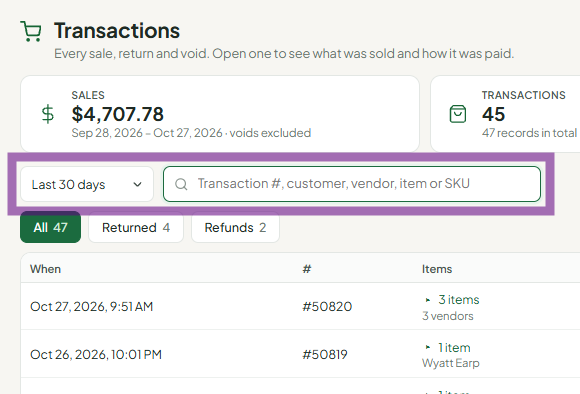
- Press View on the sale, then press Open transaction in the drawer. The classic Transaction Details page opens.
- Press Cash Return.

- On the Return page, choose what's being returned:
- Partial return: press Select next to each item being returned. The return amount updates automatically.
- Full refund: tick Full Refund to select every item.
- Tick Return to Inventory if the items can be sold again. Leave it unticked for damaged items.
- Press Complete Return and give the customer their cash.
Things to know
- Returns work the same way for Cash Return, Credit Return, and returning to a gift card.
- If the sale is from today and nothing about it needs to stay, you can Void it instead. Voids are same-day only.
- If the sale included a gift card sale or reload, returning that line takes the money back off the gift card. If the customer already spent it, you'll see a message like "Gift card ... has $5.00 available, but this return takes back $25.00." Remove that line from the return; other items can still be returned.
Troubleshooting
- Can't print a receipt from the Return screen: go back to Sales > Transactions, find the return transaction (use the Returned or Refunds chip), press View, then Receipt.
- The sale was rung under the wrong vendor: completed sales can't be edited. An administrator fixes it in Money > Rent & fees on the Credits & fees tab: post a Fee (debit) to the wrong vendor and a Credit to the correct vendor, with a description.
