
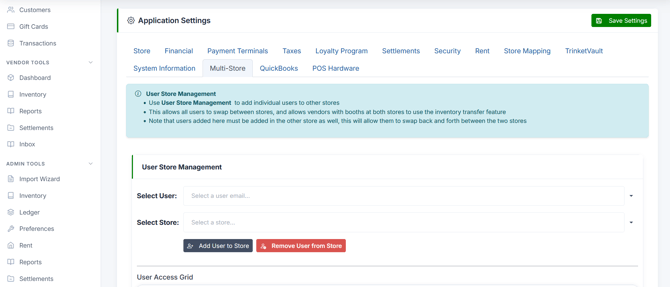
The Multi-Store tab in Preferences allows administrators to grant existing users access to additional store locations. Once added, those users can switch between stores and if the user is a vendor with a booth at both locations - use the inventory transfer feature.
Important: Access must be configured in both stores. Adding a user here grants them the ability to switch to the other store, but the other store must also add that user on their end to allow switching back.
Prerequisites
- You must have the Administrator role.
- The user must already have an account in the system.
Steps: Adding a User to Another Store
- Navigate to Admin → Preferences.
- Click the Multi-Store tab.
- Under the User Store Management section, use the Select User dropdown to choose the user's email address.
- Use the Select Store dropdown to choose the destination store you want to grant them access to.
- Click Add User to Store.
- A confirmation message - "User added to store successfully." - will appear when the operation completes.
Viewing Current User Access
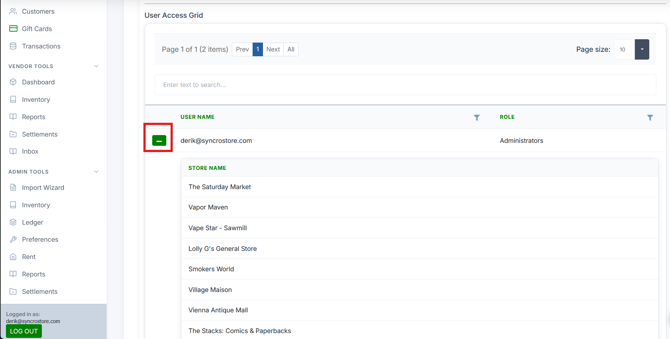
The User Access Grid is directly below User Stores Management section, and form lists all users and their roles. Click the expand arrow on any user row to see which stores that user currently has access to.
Revoking User Access to a Store
If you do not want a user to be able to swap back and forth between stores:
- Select the user from the Select User dropdown.
- Select the store from the Select Store dropdown.
- Click Remove User from Store (red button).
Common Errors
| Message/Issue | Cause | Resolution |
|---|---|---|
| "Please select both a user and a store." | One or both dropdowns are blank. | Select a user and a store before clicking the button. |
| "This user is already associated with the selected store." | The user already has access to that store. | No action needed — the access already exists. |
| You can not find the store you want to add the user to in the dropdown | You are not an admin user in the other store | Obtain Admin level access to the other store, or have another admin add the user |
Notes
- User store associations are not automatic — each store must independently add the user.
- Vendors with booths at multiple locations need to be added at each store to use the inventory transfer feature.
- If using customer sharing alongside the loyalty system, points are applied based on the loyalty settings of the store where the transaction occurs.
