
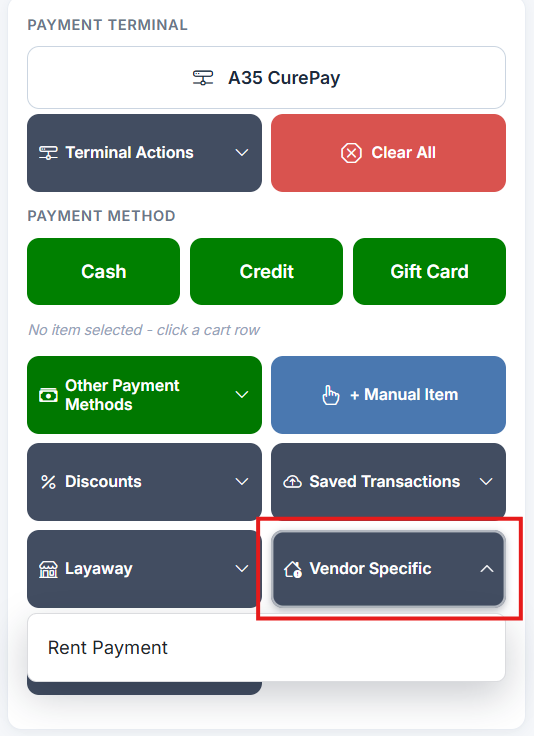
On the register, open Vendor Specific → Rent Payment, find the vendor, enter the amount and press Add rent payment, then take payment as normal.
Who this is for: Cashiers using the register (Sales > Register). Consignment plans only. If you can't see the Vendor Specific menu, that's why.
Take a rent payment
- On the register, open Vendor Specific → Rent Payment. A search box appears.
- Search by vendor ID, alias, name or business name. Leave the box empty and press Search to list every vendor in the store.
- Pick the vendor. Each result shows "#57 - Wrendale Designs" with their Balance and Deposit.
- Enter the Payment amount.
- To record a security deposit instead, tick "Send as a deposit (does not affect balance)".
- Press Add rent payment. The line reads "Rent Payment - 57" (or "Rent Deposit - 57" for a deposit).
- Take payment as normal.
Rent vs deposit
| Goes against | Use for |
|---|---|
| Rent payment: the vendor's rent balance | Regular booth rent |
| Deposit: their deposit balance | Security deposits held against the booth |
A deposit doesn't reduce what they owe in rent. Get this right at the register, because it's fiddly to correct afterwards.
Tax and card fees
Rent is never taxed, neither payments nor deposits. Dual-pricing or vendor choice does apply: a vendor paying rent by card pays the credit price, like any other card payment.
Troubleshooting
- The vendor's balance didn't change after I added the line: it changes when the sale is paid, not when the line is added.
- I recorded a deposit as rent (or the other way round): ask a store admin. They can post a correction under Money > Rent & fees > Credits & fees.
