
Tabs at the Top: Lines and Payments
Lines Tab
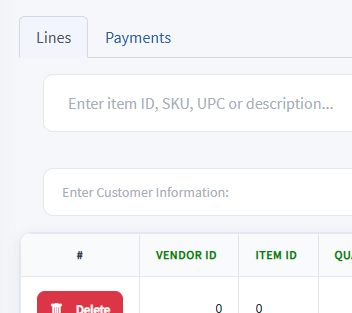
Use the Lines tab to:
-
Scan or add items
-
Edit price, quantity, and description
-
Apply discounts
-
Review the line item grid and totals
Payments Tab
Use the Payments tab to:
-
View payments already applied to this transaction
-
Void partial payments when needed
Key Areas on the POS Screen
Item Scan / Entry Field

The “Enter ItemID, SKU, UPC or Description” field is automatically selected when the page loads so you can start scanning immediately.
Line Item Grid

Shows line items and important columns like Vendor ID, quantity, and price fields.
Transaction Summary
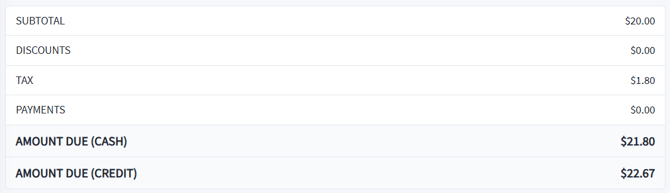
Displays Subtotal, Discounts, Tax, Payments, and Amount Due (Cash/Credit).
Right Menu
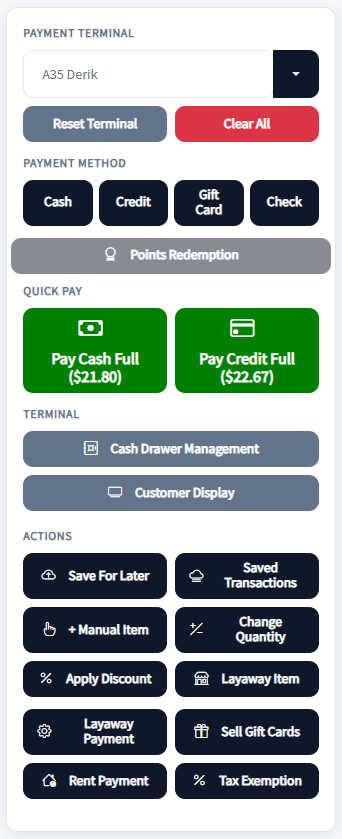
Includes:
-
Payment Terminal selector
-
Reset Terminal / Clear All
-
Payment Method buttons
-
Quick Pay buttons
-
Cash Drawer Management
-
Customer Display
-
Actions menu (Save for Later, Saved Transactions, Manual Item, etc.)
