
What Cash Drawer Management Does
The Cash Drawer Management button opens the drawer management tools where you can:
-
Open drawer
-
Close drawer
-
Perform a cash drop
-
Add cash to the drawer
- View transaction and history
-
Run a “No Sale”
Opening and Closing a drawer:
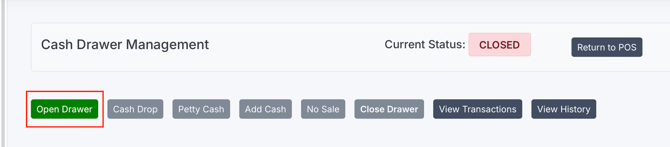
- To open a drawer hit the first green button "Open Drawer" to close the drawer his the gray close drawer button
- Notice the current status on the header card to show if the cash drawer is currently open or not
Petty cash and Cash drop:
- You can remove cash from the drawers with the "Cash Drop" and "Petty Cash" buttons next to the open drawer.
- Cash drop is designed for larger amounts and petty cash is for smaller. Simply click the button and enter the amount you are going to remove and a reason if necessary.
Running a No Sale:
- This will open the cash drawer without a sale attached
Viewing Transaction and Cash drawer history:
- Start by clicking on either the View Transactions button or the View History button to bring up a detailed grid
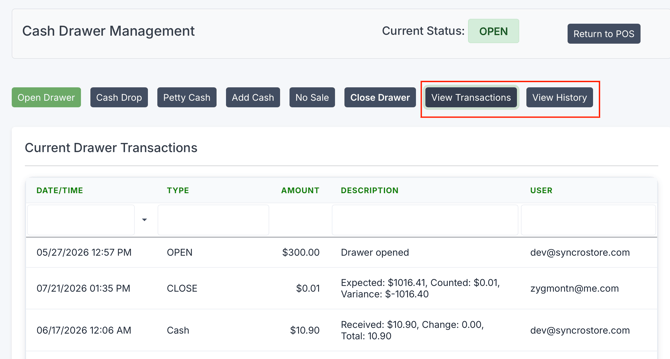
- View transactions shows you all cash related transactions ran on the current drawer
- View History shows you all the relevant information on the cash drawer itself such as who opened it, if it still open or if it's been closed.
Adding cash to a drawer:
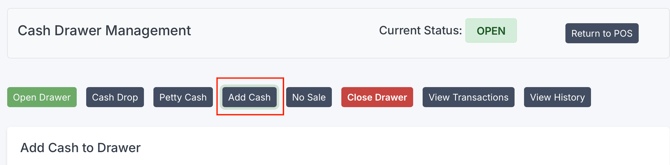
- Use this when you bring cash into the drawer from the safe (a pay-in). It increases the expected drawer balance.
- Simply provide the amount, and a reason if necessary
Reconciliation Tips: Match Register to Terminal:
Cash reconciliation is easiest when:
-
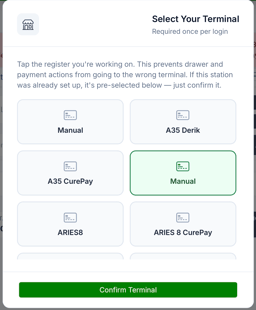
You select the correct Payment Terminal for the register you are using. Make sure you select the current payment terminal. Once upon login the cashier will be prompted to select their current cash drawer to make this easier.
-
Cash payments are taken on the correct terminal/register pairing. They will be logged on the selected payment terminal regardless of whether or not the drawer is open or not.
- Be cognizant of any warnings for any open drawers with the current user logged in that may be on the wrong terminal

- These will appear at the top warning you that you have a open drawer already and you do not have that one selected.
If you see end-of-day mismatch issues, confirm register/terminal selection first.
