
What Changed in the Inventory Layout?
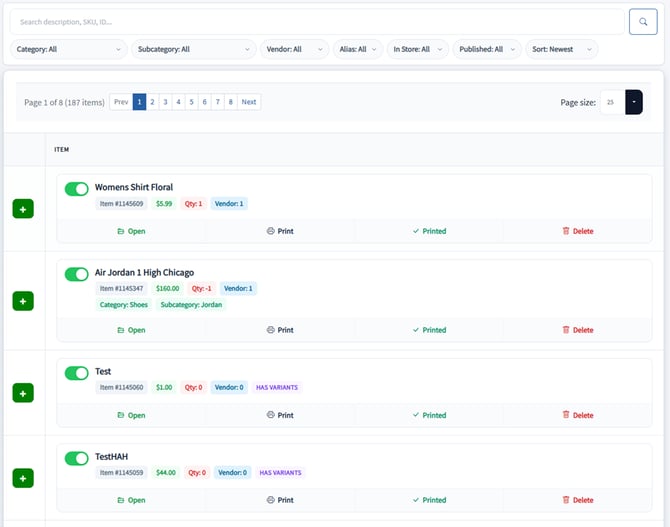
The new inventory interface displays more information in a compact card format.
Instead of relying on horizontal scrolling or hidden columns, all important item details are now organized under a Tags section located beneath each item’s description.
Information Available in Tags
Each inventory item now clearly displays:
-
Item ID
-
Price
-
Quantity
-
Vendor ID
-
Vendor Alias
-
UPC
-
SKU
-
Category
-
Subcategory
-
In-Store status
-
TrinketVault Published status
-
Additional key attributes
This layout improves readability while keeping all critical information visible.
How to Search for an Inventory Item
To quickly find an item:
-
Use the Search box above the inventory container
Enter Item ID, SKU, UPC, or Description3
Results update dynamically based on your input.
How to Filter Inventory
You can filter inventory using the built-in filter options:
-
Category
-
Subcategory
-
Vendor
-
Vendor Alias
-
In-Store status
-
TrinketVault Published status
Sorting Options
Inventory can be sorted by:
-
Newest
-
Alphabetical (Description)
-
Highest Price
-
Lowest Price
-
Low Quantity
These filters allow you to quickly narrow down items based on operational needs.
Printing Barcodes
Barcode printing functionality remains unchanged.
Printing a Single Barcode
-
Locate the item card
-
Use the command buttons at the bottom
-
Available options:
-
Open
-
Print
-
Mark Printed
-
Delete
-

Printing Multiple Barcodes
-
Click Print Options in the top navigation bar
-
Select your label format
-
Enable or disable dual pricing
-
Click Print Barcodes
-
Review and print from the preview screen
What’s Next?
This inventory update is part of a larger interface improvement initiative inside Syncrostore.
Over the coming months, additional UI enhancements will be released to make workflows more intuitive and efficient for both Vendors and Store Owners.
