
The Label Designer lets you build your own label layout: set the size, place fields such as price, description, SKU and barcode, save it, and pick it as a Saved design when you print.
Who this is for
- Vendors who need a size or layout the standard labels don't offer, such as bigger text, variant details, a QR code or very small labels
- Store admins who want one store-wide label for every vendor
Open the Label Designer
These steps use the New Experience. If your menu looks different, click Switch to New Vendor Experience (vendors) or Switch to New Experience (Beta) (staff) at the top of the page.
- Go to Inventory, tick an item and click Print labels in the bar that appears.
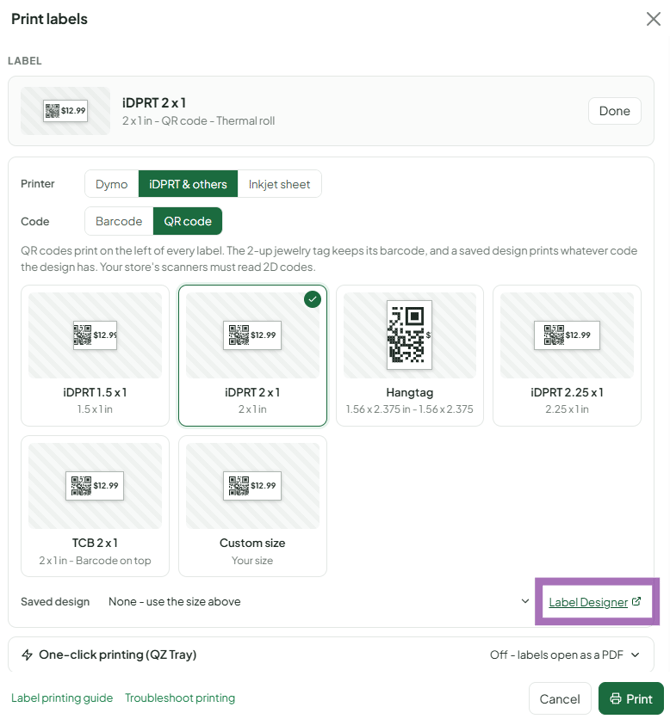
- In the Label card, click Change. Under the tiles, click the Label Designer link next to the Saved design dropdown. It opens in a new tab. (Store staff can also use Inventory > Label designerin the menu.)
The screen has four areas: Add fields (left), the Canvas (center), Properties (right) and Saved designs (left, under the fields).
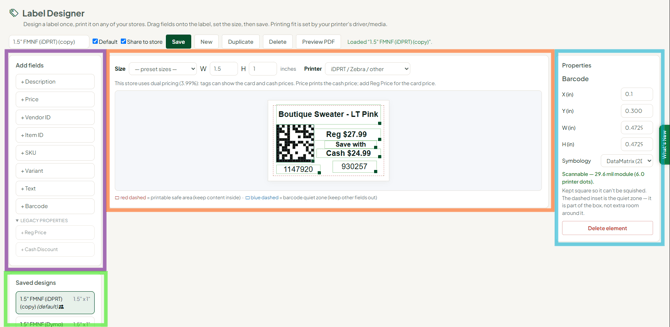
The designer shows sample data. You can't type your own item details into it. When you print, each item's real description, price and codes fill in automatically.
Step 1: Set the label size
- Above the canvas, pick a preset size, such as 1.5 x 1 (Dymo 30347), or type your own W (width) and H (height) in inches.
- Match the size to the label stock loaded in your printer.
- Under Printer, pick iDPRT / Zebra / other or Dymo (adds shift padding). Dymo printers print shifted right, so the Dymo choice leaves room for that.
Step 2: Add fields
Click a field under Add fields to drop it on the label:
- Description: the item name
- Price: the price for your store's pricing setting
- Reg Price: the regular (card) price, for dual pricing
- Vendor ID, Item ID, SKU: identifiers. SKU prints only if the item has a SKU.
- Variant: the variant details (for example, Color: Red Size: M)
- Text: your own words, such as "Cash" or your shop name. Type it in Properties; it prints the same on every label.
- Barcode: a scannable code
You can't add a logo or picture.
Step 3: Position, resize and style
- Drag an element to move it. Drag the green handle at its bottom-right corner to resize it.
- In Properties, set position, width/height, font size, bold and alignment.
- Keep everything inside the red dashed line (the printable safe area). Keep other fields out of the blue dashedbarcode quiet zone.
Barcodes
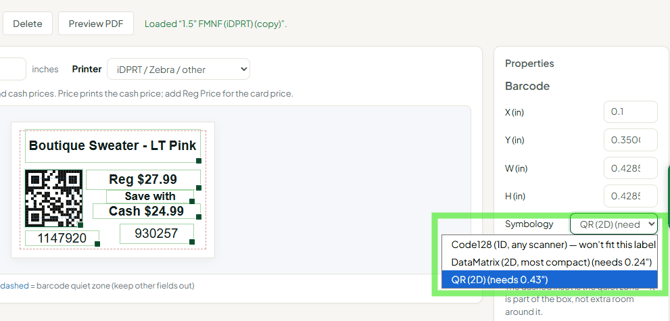
- In Properties > Symbology, choose Code128 (works on every scanner; recommended), or QR / DataMatrix (only if your scanners read 2D codes).
- Barcodes have a minimum size so they scan. A Code128 barcode needs a label about 1.98" wide on an iDPRT printer, or 2.32" wide on a Dymo. On a 2" x 1" label it fills almost the whole width. For smaller labels, use QR, which stays square and fits small labels. The designer only offers the codes that fit your label size.
Step 4: Preview and save
- Click Preview PDF to see the label at true size.
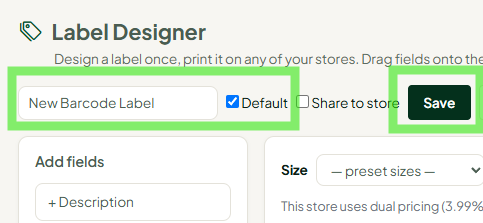
- Type a name at the top.
- (Optional) Tick Default to make it your go-to label.
- (Store admins, optional) Tick Share to store so every user in the store can choose it under Saved design.
- Click Save.
Saved designs are tied to your login, so you'll have them in every store you sign in to. Under Saved designs you can open, create (New), Duplicate or Delete designs.
Print with your design
- On Inventory, tick the items and click Print labels.
- In the Label card, click Change, choose your design from the Saved design dropdown and click Done.
- Set quantities and click Print. Print the PDF at 100% / Actual Size.
Dual pricing (two prices on one label)
The Price field prints one price, following your store's pricing setting. For a two-price label, open Legacy Properties and add Reg Price and Cash Discount. Two-price labels are for dual pricing stores: on dual-priced items they print "Reg" with the card price and "Cash" with the cash price. Vendor Choice stores print the credit card price only, and other stores print the cash price. On single-price items, Cash Discount is skipped, and Reg Price prints the one price only if the design has no Price box.
Troubleshooting
- My small label’s barcode used to be 1 inch wide. Now it’s about 1.75 inches and won’t resize: a standard barcode (Code128) has a minimum width so it scans reliably, and it can’t be shrunk below that. It needs a label about 2 inches wide. For a smaller label, set Properties > Symbology to QR or DataMatrix, which stay square and fit small labels (your scanners must read 2D codes), or use a label at least 2 inches wide.
- I can't type my item's details into the designer. That's expected. The designer shows sample data, and real data fills in when you print.
- The label prints the wrong size or cut off. Match the printer's paper size to the design, print at 100%, and turn QZ Tray off to check the PDF. The PDF is exact, and your printer driver controls the fit.
- The barcode won't scan. Make it bigger, keep other fields out of the blue quiet zone, use Code128 if your scanners are 1D only, and lower the printer's darkness/density.
- Text is cut off. Give the text box more height or lower the font size.
- A shared store design disappeared. Store admins can share or remove shared designs. Ask your store, or build your own.
- My design isn't in another store or on another computer. Designs follow your login. Sign in with the same account. A store-wide design must be shared with Share to store.
- The store's default design doesn't show variants. Pick the standard TCB 2 x 1 label under iDPRT & others, or ask the store admin to add the Variant field to the shared design.
- Can I use a custom design on an inkjet sheet (e.g., Avery 5160)? No. Custom designs print on label printers only.
