
Selling a gift card
Press Sell Gift Cards in the right rail, scan or type the card number, and press Add gift card.
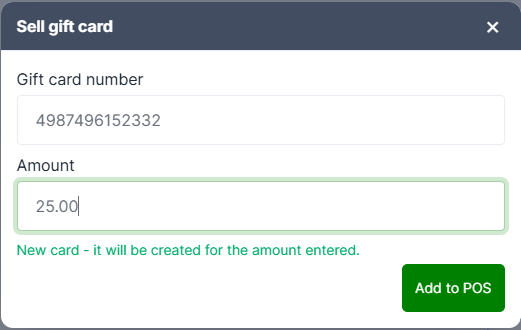
The card is added to the sale as a line named "Gift Card Sale - 6012345" at its face value, and you'll see "Gift card added ($25.00)". Take payment as normal.
The card must already be in your gift card inventory and not yet active. If it isn't, you'll see "Invalid gift card number or card is already active."
Two things to know:
- The card isn't activated until the sale is paid for. Abandon the sale and the card stays inactive.
- Gift cards are never taxed, but if your store charges a card surcharge, buying a gift card with a card costs the surcharge.
Taking a gift card as payment
Press Gift Card in the right rail. Scan or type the number.
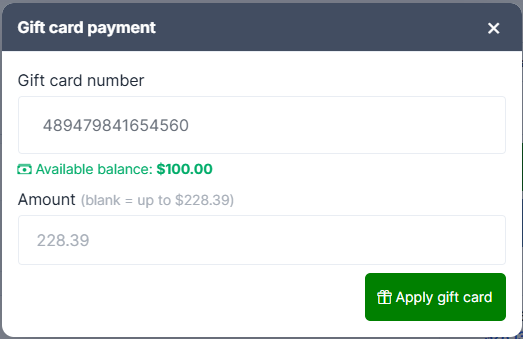
The balance is checked as soon as you leave the number field (or press Enter). You'll see one of:
- Available balance: $100.00 — green
- Available balance: $0.00 — red
- Gift card not found or is not active. — red
If some of the balance is reserved on another open sale, it shows as "($10.00 reserved)".
Leave Amount blank to apply as much as the card can cover, or type a smaller amount. Press Apply gift card.
You'll never take more than the card holds, and never more than the sale needs.
Two useful details
Applying a gift card reserves the balance immediately, so the same card can't be spent twice across two registers. The balance actually comes off when the sale is paid for. Press Clear All and the reservation is released.
Gift cards issued by a linked store work here if your stores share gift cards — though selling a card is always scoped to your own store's inventory.