
Use Saved Transactions when a customer needs to step away — they've forgotten their wallet, they want to grab one more thing, or there's a queue behind them.
Saving
Saved Transactions → Save. You'll be asked "Save this transaction for later?" Press OK and the register clears, ready for the next customer.
An empty sale can't be saved — you'll see "Cart is empty."
What gets saved
Everything: items, quantities, prices, discounts, tax, the attached customer, and any payments already taken. A customer who paid $20 cash and went to the car park comes back to a sale that already shows that $20.
Double-check all discounts when restoring a transaction, if complex discounts are already applied to the transaction, they may have to be re-entered.
Restoring
Saved Transactions → View Saved.
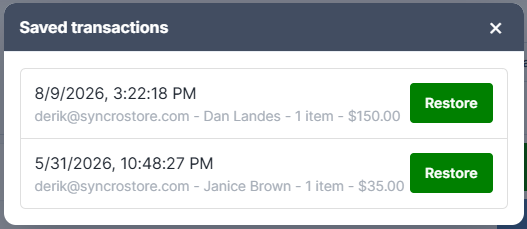
Each row shows when it was saved, who saved it, the customer, the number of lines and the total. Press Restore.
Two details about that list:
- The total excludes tax and doesn't account for payments already taken. It's for identifying the sale, not for quoting a balance.
- "3 items" means three lines, not three units.
Restoring deletes whatever is currently on the register
If you're halfway through ringing up another customer, save that sale first. Otherwise it's gone.
Other things to know
- Any cashier can restore any parked sale. The list is store-wide, not per-cashier.
- A saved sale can only be restored once. It leaves the list when restored. To park it again, save it again.
- The sale becomes yours. Whoever restores it becomes the cashier of record.
- Tax and exemption come back exactly as saved. A reseller customer's exemption is restored with them.
