
Saved Discounts for POS Transactions
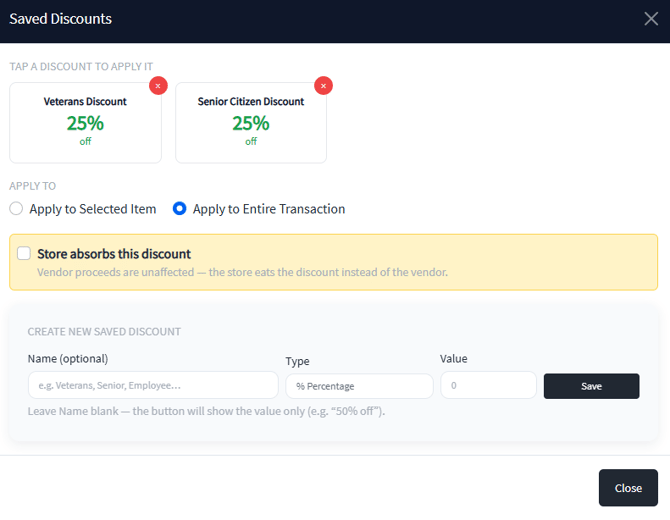
Syncrostore now supports Saved Discounts inside the Point of Sale. This feature allows stores to create reusable discounts such as:
- Veteran Discounts
- Senior Discounts
- Employee Discounts
- VIP Discounts
- Store Promotions
Once created, these discounts can be quickly applied during checkout without manually entering percentages each time.
Permissions
Administrators and Managers
Administrators and Managers are the only users who can:
- Create saved discounts
- Delete saved discounts
Cashiers
Cashiers can:
- View existing saved discounts
- Apply saved discounts to transactions or items
Cashiers cannot create or delete saved discounts.
How to Access Saved Discounts
- Open the Point of Sale screen
- Start or open a transaction
- Click Saved Discounts
You will see a list of available discount buttons that can be applied with a single click.
Applying a Saved Discount
When selecting a saved discount, you can choose:
- Apply to Selected Item
Applies the discount only to the highlighted item. - Apply to Entire Transaction
Applies the discount across the entire sale.
Simply click the saved discount button to apply it. (Note: Please apply discounts after ALL items have been added to the transaction. If you apply a transaction wide discount, it won't apply to new line items added after.)
Store Absorbs This Discount
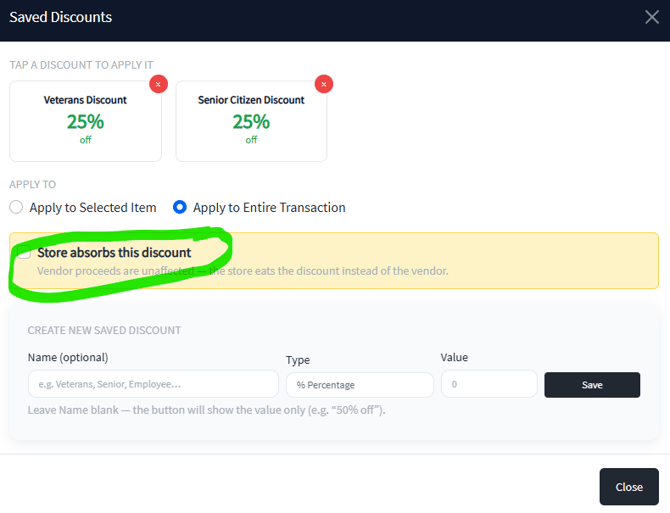
The Store absorbs this discount checkbox is applied at the time the discount is used.
This setting is not saved with the discount itself.
When enabled:
- Vendor proceeds remain unaffected
- The store absorbs the discount amount instead of reducing the vendor payout
When disabled:
- The discount reduces vendor proceeds normally
This gives cashiers and managers flexibility to decide whether a promotion is store-funded during checkout.
Common Examples
Store-funded promotions may include:
- Veteran discounts
- Senior citizen discounts
- Customer appreciation promotions
- Temporary store-wide sales
Creating a New Saved Discount
Only Administrators and Managers can create saved discounts.
To create a new discount:
- Open Saved Discounts
- Enter a discount name (optional)
- Choose the discount type
- Enter the discount value
- Click Save
Example Discounts
| Name | Type | Value |
|---|---|---|
| Veterans Discount | % Percentage | 25 |
| Senior Discount | % Percentage | 10 |
| Employee Discount | % Percentage | 50 |
If no name is entered, the button will display the discount value only.
Example:
- “50% off”
Deleting a Saved Discount
Administrators and Managers can remove saved discounts by clicking the X icon on the discount button.
Deleting a saved discount removes it from future use but does not affect past transactions.
Best Practices
- Create common discounts ahead of time for faster checkout
- Use clear naming conventions for staff
- Limit discount creation permissions to trusted users
- Verify whether the store should absorb the discount before applying it
- Review discount usage regularly to maintain consistency across staff
- If you apply a transaction wide discount, it won't apply to new line items added after, so it's best to apply the transaction discount after all items have been added to the POS.
