
Step 1: Go to the Inventory Page
Log in to Syncrostore and navigate to the Inventory page from the main menu.
Step 2: Find the Item with Variants
Use the search bar or browse your inventory to locate the item that contains variants.
Examples of variants may include:
-
Different sizes
-
Different colors
-
Different conditions
-
Different attributes associated with the same parent product
Step 3: Choose Print Options
Looking at the item to be printed, locate the Print button beneath the item description.

Step 4: Confirm Label Quantity
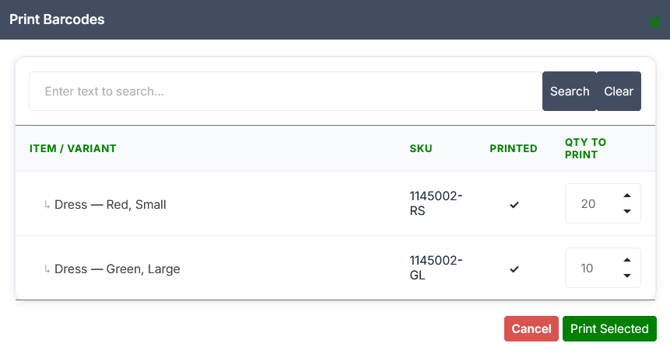
A prompt will appear allowing you to set how many labels should be printed per variant.
-
Adjust the quantity to print if needed.
-
When you're ready, click Print Selected, and a PDF will be generated for printing
Step 5 (Optional): Printing Several Items with Variants at once
Printing several variant items at the same time is also possible.
- Instead of selecting the print option on each item, simply Click each item so that it appears selected with a grey background.
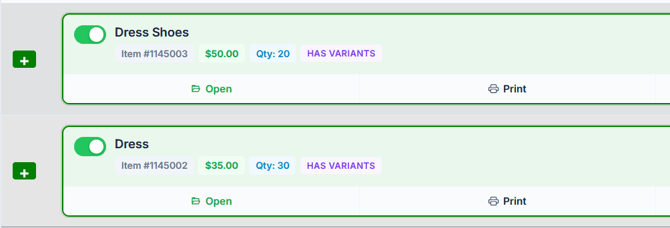
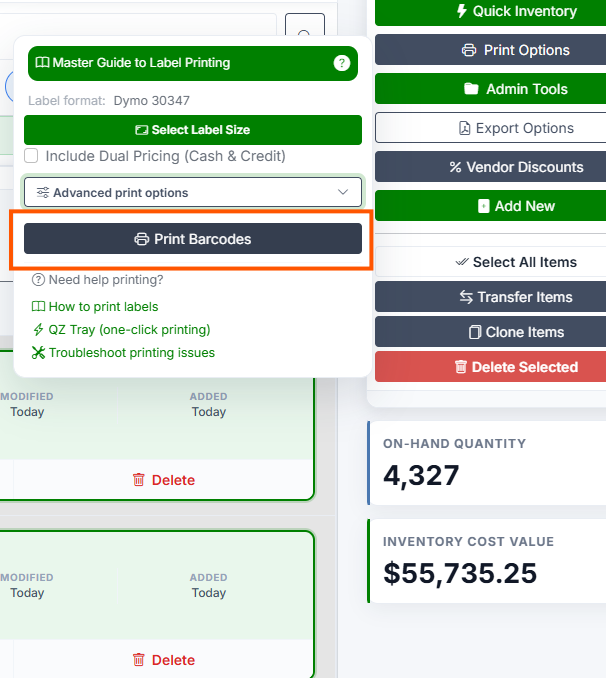
- Once all items you wish to print are selected, locate the Print Options button on the right column, and after ensuring label size & setup, choose the Print Barcodes options.
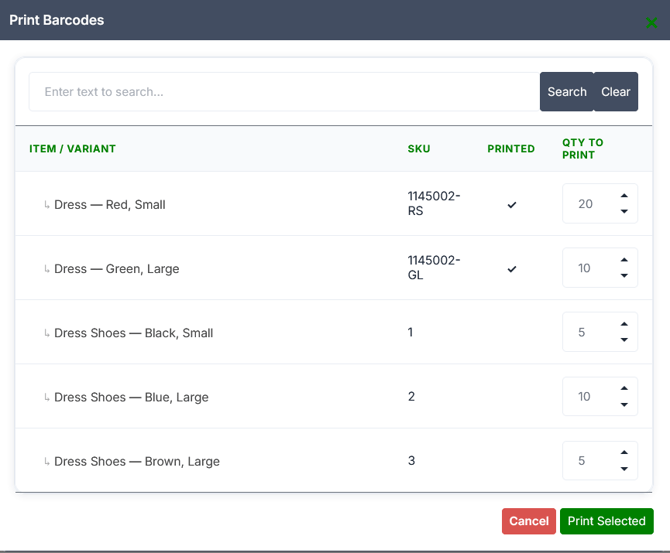
- A popup will appear to adjust how many of each variant you would like to print, for every item you selected. When ready, select Print Selected and a PDF will be generated to be printed.
Tips
-
Make sure the correct label format is selected for your printer.
-
If you only want to print certain variants, simply set the Quantity to Print of others to zero.
