
What vendor labels are for
Sometimes you have items you don’t want to enter into inventory one by one: small pieces, one-offs, or a last-minute restock. Vendor labels let you tag them anyway.
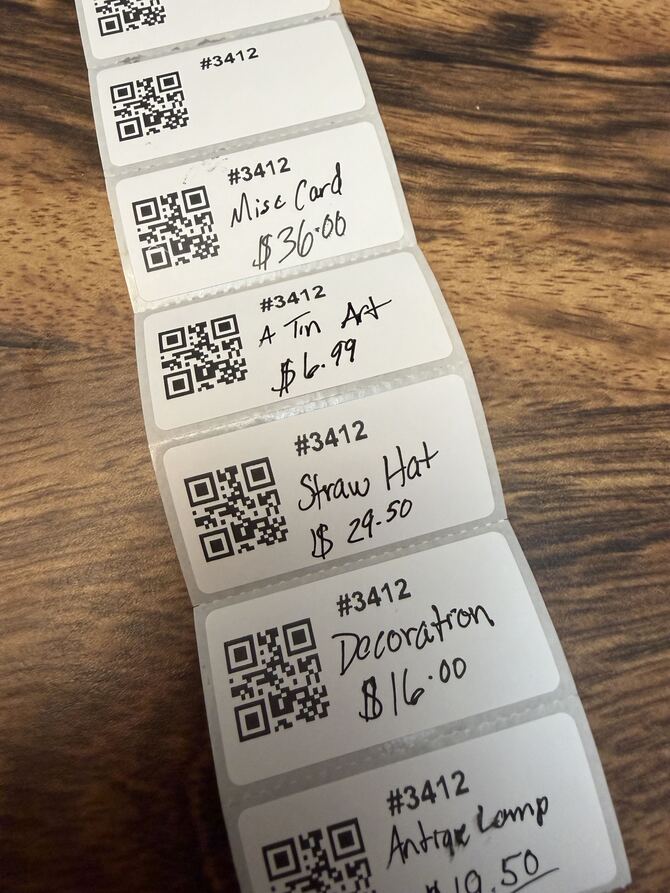
Each vendor label shows only your vendor number and alias at the top and a barcode at the bottom. The rest of the label is blank, so you can write the item name and price on it by hand.
When the cashier scans the label, the register opens a manual item already set to your vendor. The cashier types in the item and price from the label, and the sale is credited to you.
Print vendor labels
- Go to Inventory.
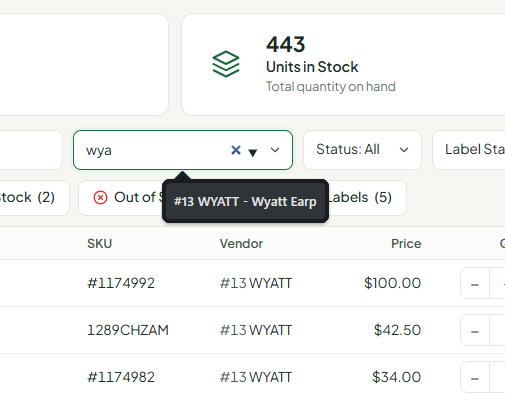
- Staff only: in the Vendor box, type the vendor’s number, alias or name and pick them from the list. Vendors skip this step; your own vendor is already selected.
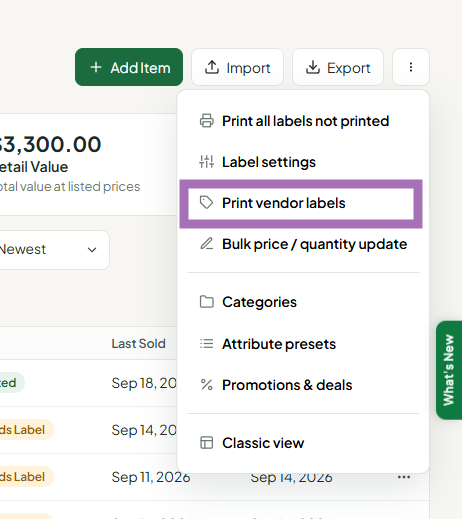
- Open the More menu (⋮) at the top right and choose Print vendor labels.
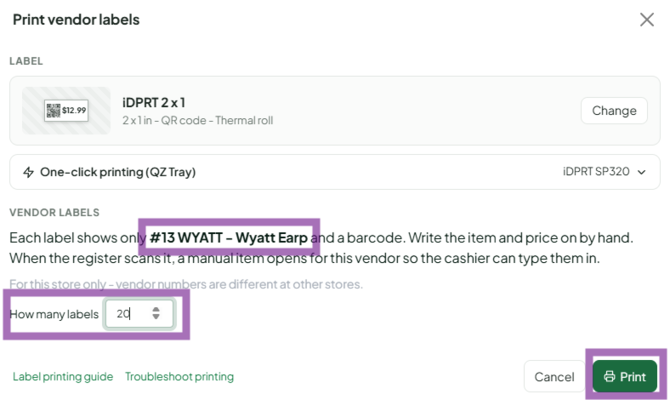
- Under Label, pick your label size. This works with every label size you already use, including sheet labels, Custom sizes and Label Designer sizes. The Dymo 30299 jewelry tag is too small and isn’t supported.
- Enter How many labels (1 to 1000).
- Click Print.
Vendor labels don’t affect your inventory and aren’t marked as printed on any item.
Tip: If your vendor number is long (5 or more digits) and you print on narrow 1.5" × 1" labels, turn on QR codes in the label settings. QR codes scan reliably at any size.
Ring up a vendor label at the register
- Scan the label like any other item.
- The Manual item window opens with the vendor already filled in. A green line shows the vendor number and alias so you can confirm it matches the label.
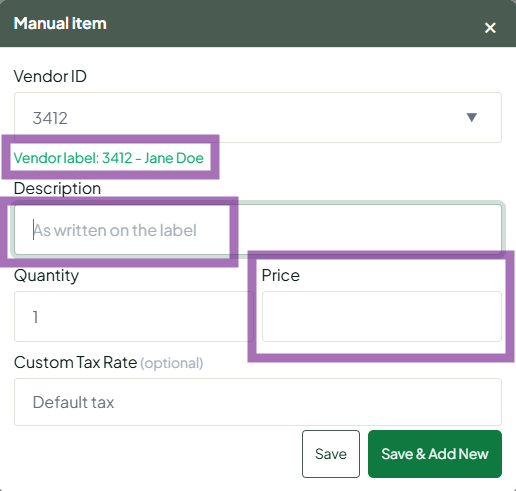
- Type the Description and Price written on the label.
- Click Save or Save & Add New.
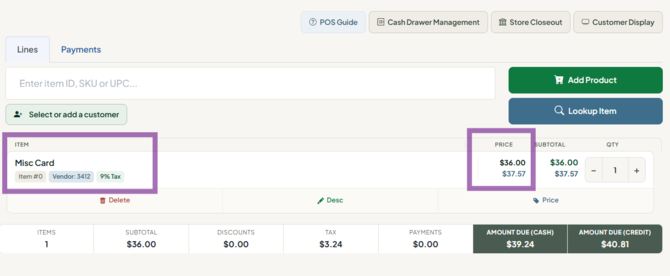
If the vendor number on the label doesn’t belong to a vendor at this store, the Vendor box stays empty with a note in red. Enter the correct vendor before saving.
Things to know
- These labels are for this store only. Vendor numbers are different at each store, so a label printed here won’t ring up the right vendor anywhere else.
- Only the current register supports vendor labels.
- Write clearly. The cashier types exactly what’s written, so print the price legibly.
