
Anyone working your register can change what an item rings up for. Usually that is exactly what you want — a damaged item, a price-matched competitor, a customer who has been waiting too long. But until now there was no way to say how far a cashier could go on their own, and no record of who changed what.
Manager approval for price cuts fixes both. You pick a percentage; anything larger asks for a manager PIN. And every price cut is recorded either way, whether or not it needed approval.
Turning it on
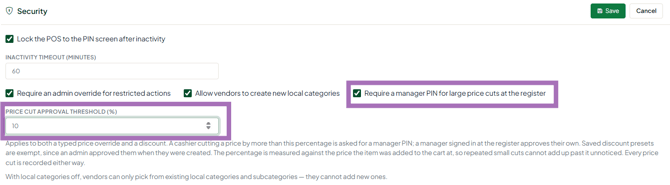
Go to Admin › Preferences › Security and click Edit. Tick Require a manager PIN for large price cuts at the register. A Price Cut Approval Threshold (%) box appears — set the percentage you are happy for a cashier to give away without asking. Click Save.
The feature is off until you switch it on, and the threshold starts at 10%. Nothing at your register changes until you save it.
Choosing a threshold
There is no right answer, but a useful way to think about it: set it just above the largest discount you are comfortable with a cashier giving on their own judgement. If your staff routinely knock a dollar or two off a $20 item, 10% covers that without ever prompting. If you want every reduction seen by a manager, set it to 1%.
What counts as a price cut
Both ways of lowering a price are covered, which matters — otherwise the rule would only move the behaviour from one button to the other.
| What the cashier does | Covered? |
|---|---|
| Selects a line and uses Price to type a new price | Yes |
| Discounts › Percent off | Yes |
| Discounts › Amount off | Yes |
| Discounts › Set new price | Yes |
| A discount applied to the whole transaction | Yes — checked once, against the basket total |
| Applying a saved discount you created | No — see below |
| Raising a price | No — nothing is being given away |
How the percentage is measured
This is the part worth understanding, because it is not simply “percent off the current price”.
The percentage is measured against the price the item was added to the cart at, and that starting price does not move when the price is changed. So a cashier cannot take 9% off, then another 9% off the new figure, and so on, staying under the threshold each time while ending up far below where they started. The second reduction is measured from the original price, not the reduced one, so it asks for approval.
If an item is already on a vendor sale when it is scanned, the sale price is the starting price. Selling it at the advertised sale price is not a price cut and will not ask for anything.
What the cashier sees
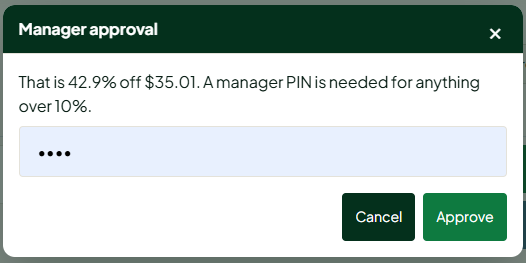
When a reduction goes over the threshold, a Manager approval box appears explaining exactly what is being asked for — for example:
That is 20% off $15.00. A manager PIN is needed for anything over 10%.
The cashier can either fetch a manager to enter a PIN, or press Cancel. Cancelling leaves the price exactly as it was — nothing is changed unless a valid PIN is entered.
Who can approve
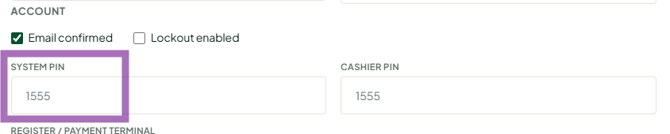
Approval uses the System PIN on a user’s record. A PIN will only work if that user is an Administrator or Manager at your store. A cashier’s own PIN will not approve their own discount.
To set or change a PIN, go to Admin › Users, open the user, and fill in System PIN — four digits.
If a manager or administrator is signed in at the register themselves, they are not asked for a PIN — they already have the authority the prompt is asking for. The record still notes that a manager approved it.
Saved discounts do not prompt
A saved discount is one an Administrator or Manager already created and approved, so applying it goes through without a prompt even if it is larger than your threshold. A 25% saved discount applies straight away; a cashier typing 25% by hand is asked for a PIN.
This is deliberate. It lets you set up the discounts you are happy with — a staff discount, a veterans discount, a damaged-goods rate — and have them used freely, while anything improvised still gets a second pair of eyes.
Every price cut is recorded
Whether or not approval was needed, each reduction is written to your store’s activity record with the item, the starting price, the new price, the percentage, who rang it, and who approved it. Cuts under your threshold are recorded too, marked as under threshold.
That record is what lets a question like “why did this $10 item ring up for a penny?” be answered in a few seconds rather than not at all. If you need this pulled for a date range, contact support and we can retrieve it for you.
Common questions
Will this slow down my register?
Only when someone goes past the threshold. Ordinary sales, saved discounts, and reductions under your percentage are untouched and behave exactly as before.
The cashier says the PIN is not working.
Check three things: the PIN belongs to a user who is an Administrator or Manager, that user is attached to this store, and their System PIN is actually filled in on their record in Admin › Users. The message is intentionally the same whichever of these is wrong, so that the register cannot be used to work out which PINs exist.
Can I set a different threshold per register or per cashier?
Not currently — the threshold is one setting per store.
What if I want to turn it off?
Untick the box in Admin › Preferences › Security and save. Price cuts continue to be recorded even with the prompt switched off.
