
These messages mean your login's role or vendor link is set up wrong for this store; an admin at your store can usually fix it in People > Users, and support fixes the cases they can't.
Who this is for: Vendors, staff and store owners who can log in but see the wrong things.
Common cases
| What you see | Likely cause | Who fixes it |
|---|---|---|
| "This login is not linked to a vendor at this store" or "No vendor selected" | Your login isn't attached to your vendor record at this store | Your store admin; if it's already linked, support |
| Store owner sees only a few menu items (for example, only rent) | Account was imported as a Vendor; bulk vendor imports default to the Vendor role | Another admin raises the role to Administrator in People > Users |
| Blank screen after logging in (single-store owner) | Account set as Super Admin, a multi-store role | Support changes it to Administrator; then hard refresh |
| Staff email opens a personal vendor account instead of staff view | A vendor record is linked to the staff email | Support unlinks it |
| Vendor and cashier at once, but vendor pages send you back to login | Profile has only the Cashier role | One login can hold both roles; your admin or support adds the Vendor role |
| Menus look different from an article or video | You're in the other mode (New Experience or Legacy Mode) | You: use the switch link at the top of the page |
Steps for store admins
These steps use the New Experience. If your menu looks different, click Switch to New Experience at the top of the page.
- Go to People > Users and find the person. Click View on their row.
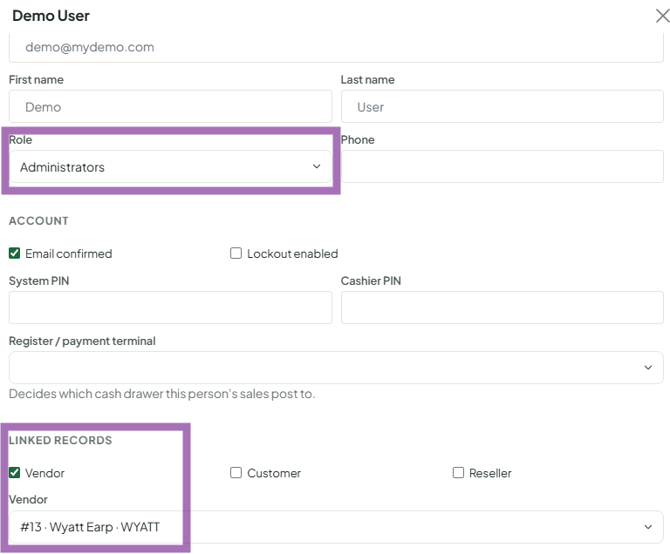
- Check their Role (Vendor, Cashier, Manager, Administrator) and that the linked Vendor is the right one for this store.
- Click Save, then ask them to log out, do a hard refresh (Ctrl+F5 / Cmd+Shift+R) and log in again.
- If the role looks right and the message continues, contact support with the user's email and store.
For security, support won't raise someone's permissions on request; an existing admin at the store must do it.
Troubleshooting
- You don't see People > Users. Only Administrators can open it. Ask another admin at your store.
- The fix was saved but nothing changed. Log out, hard refresh (Ctrl+F5 / Cmd+Shift+R) and log in again at your store's own address.
