
An "SS-" error almost always means something in your spreadsheet is in the wrong format; the fastest fix is to re-save the file as a CSV, make sure every row has a description, price and quantity, and make sure UPCs are plain digits.
Who this is for- Vendors and store admins using the Import Wizard. Open it from Inventory > Import (vendors and staff) or, for staff, Imports > Inventory. The wizard has five steps: Upload, Map Columns, Preview & Edit, Validate and Import.
- Save as CSV. In Excel or Google Sheets choose Save As / Download > CSV. Excel (.xlsx) files can carry hidden data that breaks the import.
- Required fields on every row: Description, Price (greater than $0, numbers only; a
$or comma is ignored), and Quantity (a whole number, not blank). - UPCs must be digits only and 13 digits or fewer. If Excel shows them like
8.60014E+11, format that column as Text or Number with no decimals and re-enter them. Put letters or old-system codes in SKU, not UPC. - Numbers only in number columns. For example, weight
12, not12 oz. - Remove special characters (such as
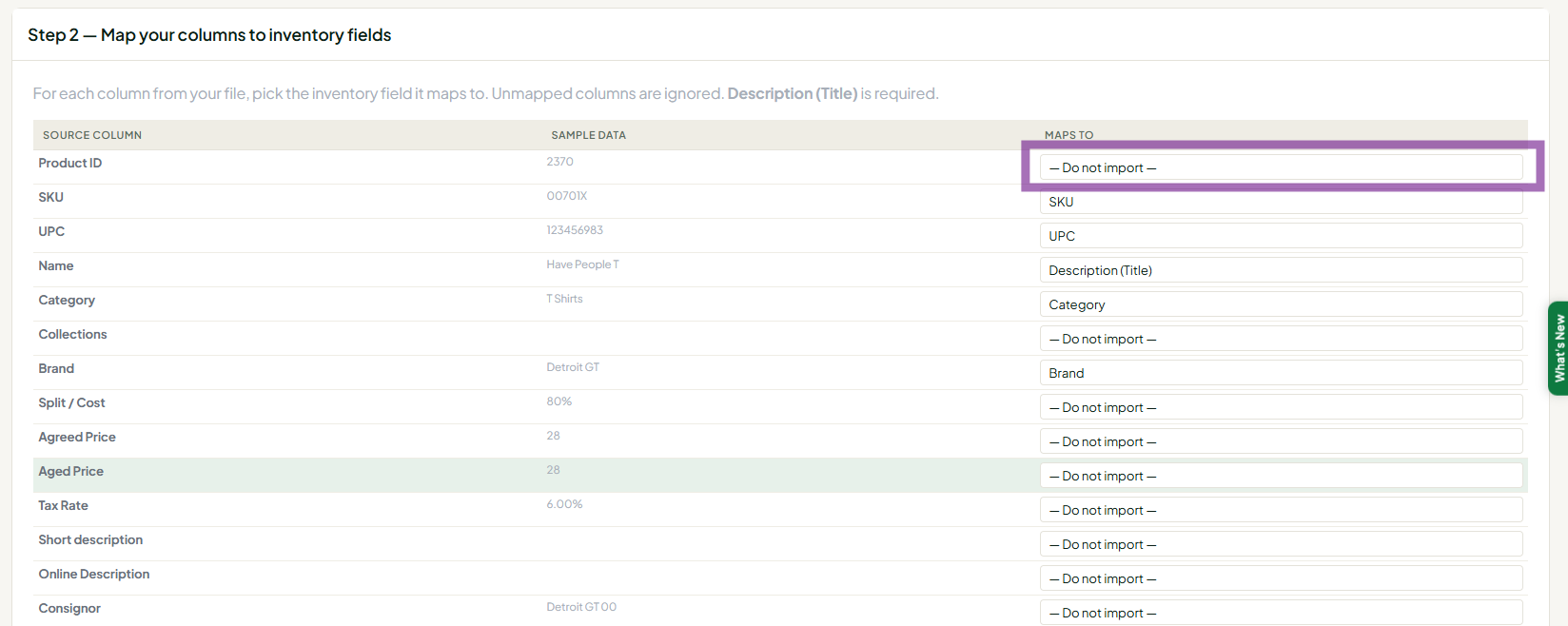
?) from text. Yes/no columns accept only yes/no, true/false, y/n, 1/0, t/f or on/off, so values like "Checked" fail. - Map columns carefully. On Map Columns, set any column you don't need (Vendor ID, weight, discount columns) to — Do not import —. Vendor columns are ignored anyway: every row goes to the vendor chosen in Importing as vendor:.
- Variants: every variant row needs its own price, quantity and unique SKU (map it to Variant SKU; a SKU used twice in the file or already on another item fails), and the same Group Key (Parent SKU / Handle) on every row of that item.
- Shopify: a raw Shopify export won't import directly. Follow Importing Your Inventory From Shopify (Including Variant Pricing).
- Only the first row (or a few rows) imported: Usually rows sharing one group key (they were treated as variants of one item) or rows missing required fields. Check group keys and required fields, then re-import.
- "There aren't any rows" or "The uploaded file contains no rows": Re-save as CSV and check the header row is the first row.
- You're logged out during the import: Re-save as CSV and try again outside the overnight update window (11 PM-1 AM Central).
- "Please choose a vendor at the top of the page before running the import": Pick the vendor in Importing as vendor: at the top of the wizard, then run the import again.
- Still failing: Send support the file and the full SS- reference code.
