
To add many items at once, click Import on your Inventory page, upload a CSV or Excel file (ideally the Syncrostore template), map the columns, preview, choose how duplicates are handled and click Run Import.
Who this is for: Vendor, Store admin
Before you start
- Download the template from inside the Import Wizard. It has a sample and a "How to Use" tab. The template only prepares your data; you still upload it through the wizard.
- Save your file as CSV (File > Save As > CSV). This avoids most errors caused by hidden Excel formatting.
- Imports work on your live store only, not demo stores.
- Coming from Shopify? Follow "Importing Your Inventory From Shopify".
Steps
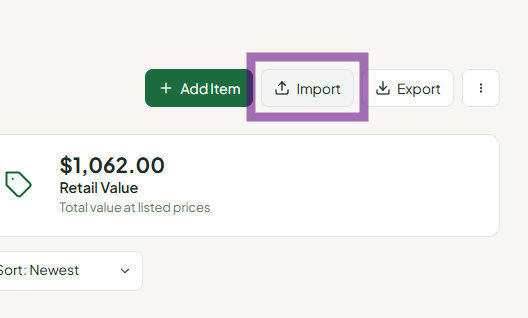
- Go to Vendor Tools > Inventory and click the teal Import button (top right / Inventory Tools).
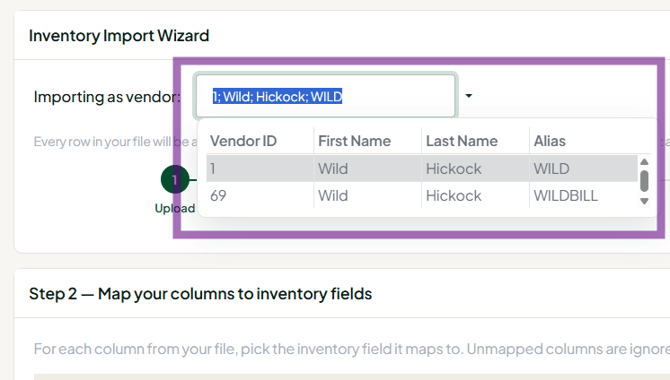
- Select your vendor in the vendor dropdown on the import page. The import won't run without it.
- Upload: drag your file in, or click to browse. Selecting a new file replaces the old one.
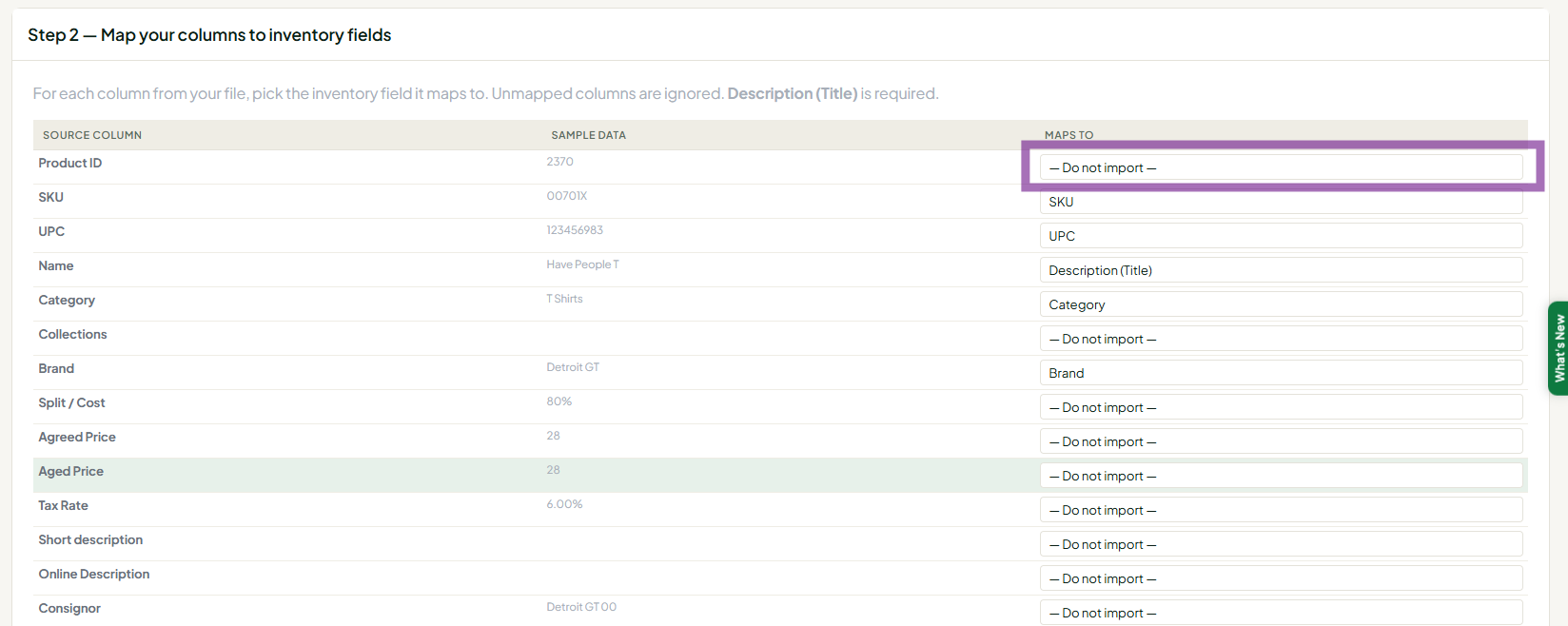
- Map Columns: check each of your columns maps to the right Syncrostore field. Set anything you don't need (weight, discount columns, Vendor ID) to Do Not Import. Description (Title) is required.
- Preview and Edit: check a few rows, fix any cell by clicking it, and toggle off rows you want to skip.
- Validation and duplicates: fix anything flagged, then choose what happens when an item already exists (matched on SKU or UPC), such as Skip or Update.
- Click Run Import and confirm. You'll see how many items were added. Then print labels.
Variant items
- Each variant is its own row. Rows of the same product share one Group Key.
- Only use a Group Key for real variants. If unrelated items share a Group Key, they import as one item (only the first appears).
- Up to 20 variant rows per Group Key.
- Give every variant row its own Variant SKU. To make existing manufacturer barcodes scan per variant, map your UPC column to Variant SKU.
Data rules that cause errors
- Price, Cost, Quantity, Weight: numbers only.
$and.are fine in prices; no "oz", "?" or text. Every row needs a quantity, description and price. - UPC: digits only, 13 or fewer. Excel can turn long numbers into
8.60014E+11; format the column as Text or Number with no decimals before saving. - Long Description: very long text can fail. Shorten it.
- "Checked"/"Yes" in In Store?: use the values the template shows.
Troubleshooting
- "Something went wrong" / SS- reference code at Validate or Run Import: a value is in the wrong format. Save as CSV, check the data rules above, and re-check your mappings.
- "There aren't any rows": convert the file to CSV and check for blank required cells.
- Only the first item imported: your rows share a Group Key. Clear the Group Key and Option columns for items that aren't variants.
- "Must select a vendor before importing": choose your vendor in the dropdown on the import page.
- Import logs me out: usually the same format errors. Fix the file as above.
- Still stuck: email support@syncrostore.com with your store name, vendor ID and the file.
- I want to replace all my items with a new file: imports add items; they don't replace inventory. Use the Bulk Update export/import to change existing items.
