
Add up to four photos per item when you add or edit an item: on a computer, in the Photos area of the Basics section, or in the Syncrostore app on the item’s screen.
Who this is for: Vendor, Store staff
These steps use the New Experience. If your menu looks different, click Switch to New Vendor Experience (vendors) or Switch to New Experience (store staff) at the top of the page.
Steps
- On a computer, open Inventory and click Add Item, or ⋯ > Edit item on an existing item.
- In Basics, find Photos (Photo 1 to Photo 4).
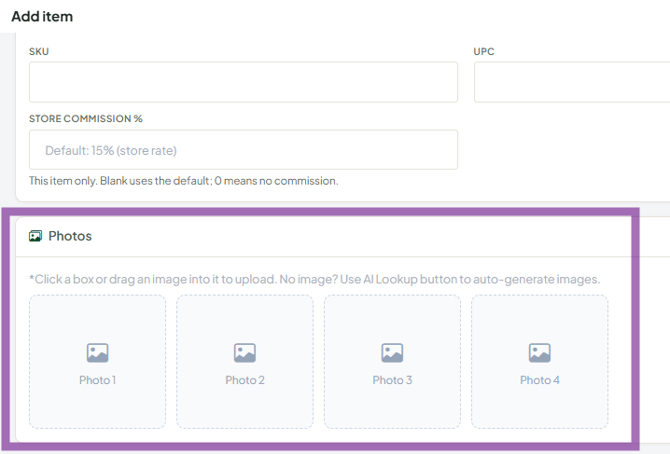
- Click a slot, or drag a file onto it, and choose an image.
- Click Save Item.
Good to know
- The first photo shows in the Item column on the Inventory page and in View details.
- Photos are used on TrinketVault listings, and at least one is required to publish there.
- SyncroAI can suggest photos: in the SyncroAI results, tap a suggested photo to add it (up to 4 photos in total).
Troubleshooting
- I don't see an upload area on my phone: use the Syncrostore app. Photo upload is on its Add Item screen. Or use a computer.
- A photo I don't want is on the item: remove it from its slot before you save.
