
On the Inventory page, open the item's ⋯ row menu and click Edit item, make your changes, and click Save Item.
Who this is for: Vendor, Store staff
These steps use the New Experience. If your menu looks different, click Switch to New Vendor Experience (vendors) or Switch to New Experience (store staff) at the top of the page.
Steps
- Vendors: open Inventory. Staff: open Inventory > All items. Find the item with the search box ("Search items by name, SKU, or description...").
- Click the ⋯ at the end of the item's row and choose Edit item. (Or click View details, then Edit.)
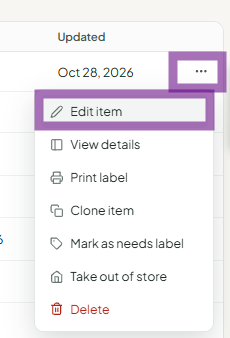
- The item form opens in a pop-up. If it says "You're viewing this item. Click Edit Item to make changes.", click Edit Item.
- Change any field: title, price, quantity, photos, details, variants or deals.
- Click Save Item.
To change only the quantity, you don't need the form: click − or + in the Qty column, or type a number.
Troubleshooting
- Error about the UPC: UPCs can contain digits only. Remove letters, or move an alphanumeric code into the SKU field.
- "SKU already used" on a variant: each variant SKU must be different from every other SKU in the store, including the parent item's SKU.
- Cost or price under $1 won't save: type a leading zero, e.g.
0.20. - The price saved as $0: retype the price rather than clicking the auto-filled value, then save again.
- Changing an item marks it "Needs Label": this is expected, so you can reprint labels with updated info.
- Tax Exempt is greyed out: only store admins can set tax exemption.
- Closing the form asks "Close without saving?": your changes aren't saved yet. Cancel and click Save Item.
