If you need to lookup where a particular item goes in your store, you can easily do so using the Cashier Tools page!
-
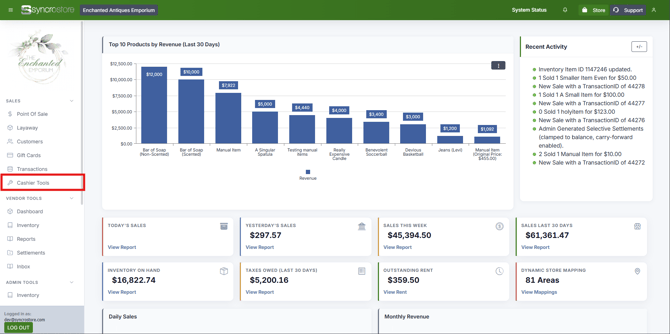
Navigate to Cashier Tools
-
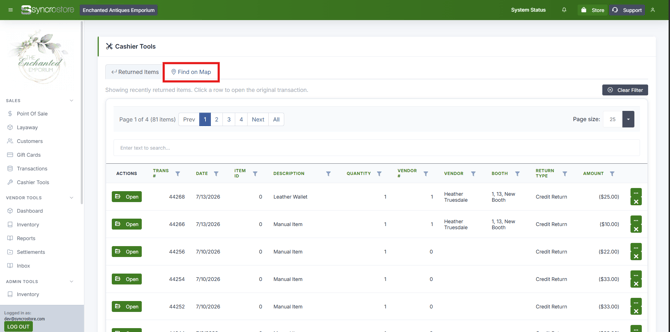
Click the Find on Map tab.
-
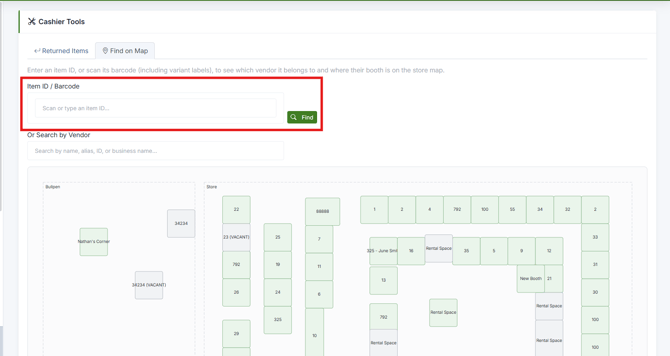
Place your cursor in the search field.
-
Manually enter the SKU, ItemID, or UPC OR scan the barcode on the item to look it up.
-
The map will highlight all booths owned by the vendor that the item belongs to.
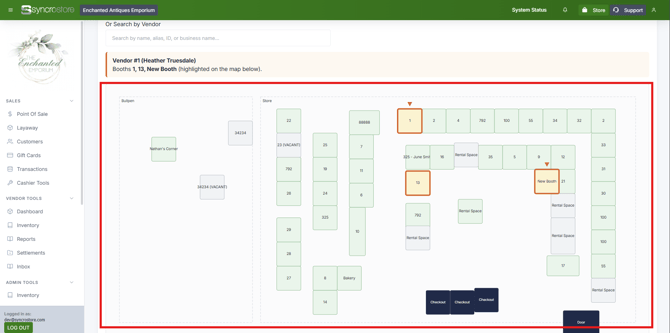
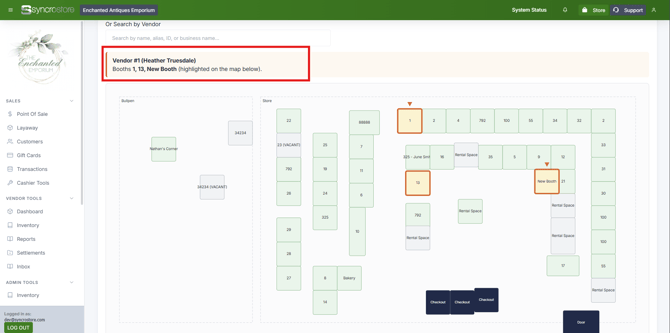
NOTE: If your store has not set up the store map or has not physically organized it, you can still see which booths the item belongs to at the top of the screen!
What if we Only do Manual Items?
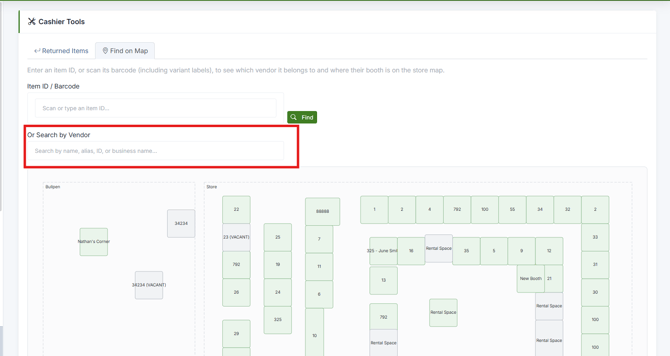
If you only do manual items and do not use the inventory management feature, you can still find all the vendor's booths by using the Vendor Selector tool.
-
Navigate to Cashier Tools, and click the Find on Map tab.
-
Click on the Vendor Search drop-down, search for the vendor by Name, Alias, Vendor ID, or Business Name. Selecting the vendor will highlight all booths associated with the vendor AND list their booth names in the top of the screen.