
Go to Settings > Store settings. For tips, tick Allow Gratuity (Tips) in the Financial section of the Financial tab. For the customer display, tick Enable the Customer Facing Display (CFD) in the Receipt & Display section of the POS Hardware tab. Click Edit before each change and Save after.
Who this is for: Store admins.
These steps use the New Experience. If your menu looks different, click Switch to New Experience (Beta) at the top of the page.
Steps
Before you start
Tips need an addendum on your merchant (card processing) account before you turn them on. Contact support to request it.
Turn on tips
- Go to Settings > Store settings. The Store settings page opens.
- Click the Financial tab, then click Edit in the Financial section.
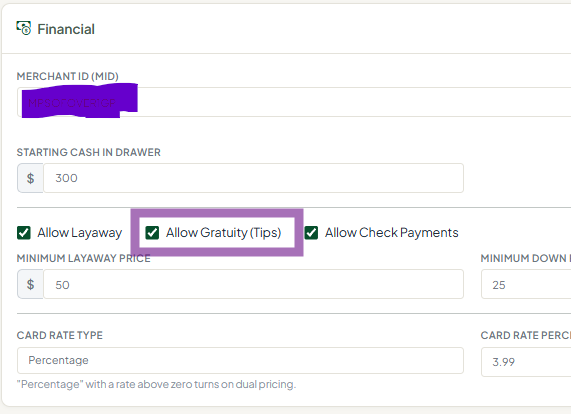
- Tick Allow Gratuity (Tips) and click Save.
Turn on the customer-facing display
- In Settings > Store settings, click the POS Hardware tab.
- In the Receipt & Display section, click Edit.
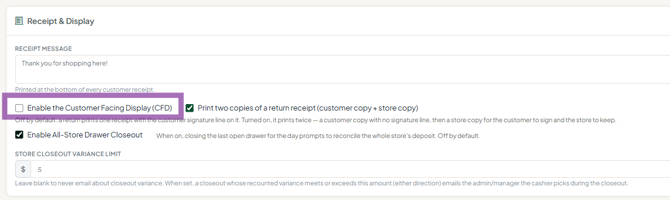
- Tick Enable the Customer Facing Display (CFD) and click Save. At checkout, the customer screen shows the line items and total for their sale only.
Changes apply from the next transaction.
Good to know
- Tips appear in the Gratuity column of the Sales Detailed report (Reports, Sales & cash group), not in Credit Card. To match your processor's batch, add Gratuity to Credit Card.
- On a card sale with a tip, the receipt shows the tip on its own Tip line after the total.
- In Sales > Transactions, open a sale with View to see its Tip.
- Tips count as non-taxable.
Troubleshooting
- Customer display opens on the register laptop: the register didn't find a second screen. Connect the customer display. There is no per-register switch: the CFD setting is for the whole store, so on a register without a second screen just close the display window.
Show promotional images
You can play your own images as a slideshow on the customer display, between sales or during a sale. See How do I show promotional images on the customer display?.
