
Use variants when one product comes in several versions. On the item form, add an attribute (e.g. Size) with comma-separated values, click + Add Variant for each version, pick its value from the dropdown, and give each variant its own price, quantity and unique SKU.
Who this is for: Vendor, Store admin
When to use variants
Use them for the same product in different sizes, colours or scents, e.g. a T-shirt in S/M/L. If items differ a lot in price, description or category, make separate items instead. Variants also let a quantity deal count mixed versions together.
Step 1: Fill in the parent item
Enter the Title, a Price and a Cost on Basics. Variants copy these as a starting point. If your variants have different prices, any non-zero parent price is fine.
Step 2: Add attributes
- Go to the Product Variants section.
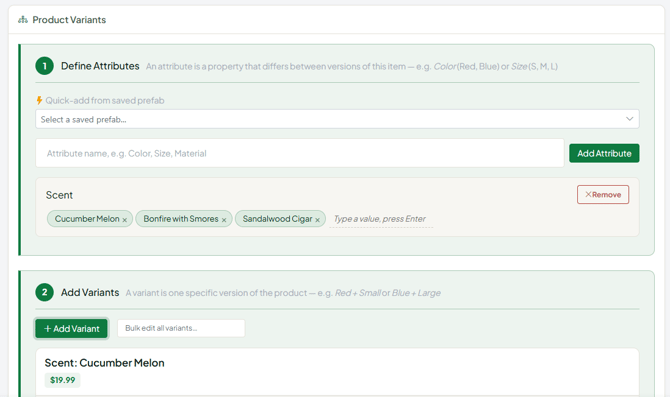
- Enter an attribute name (e.g.
Size) and click Add Attribute. - Enter the values separated by commas:
Small, Medium, Large. Without commas, "Small Medium Large" becomes one value. - Repeat for more attributes (e.g.
Color).
- Prefabs: if your store has set up a Variant Prefab (e.g. "T-Shirt Sizes"), pick it from the dropdown to add the attribute and values in one go. You can edit them without changing the prefab. Only store admins/managers can create prefabs; ask your store if you want one.
Step 3: Add each variant
- Click + Add Variant. A new variant appears set to the first value of each attribute.
- Click the attribute box on that variant (e.g. "SIZE: SMALL") and choose the correct value.
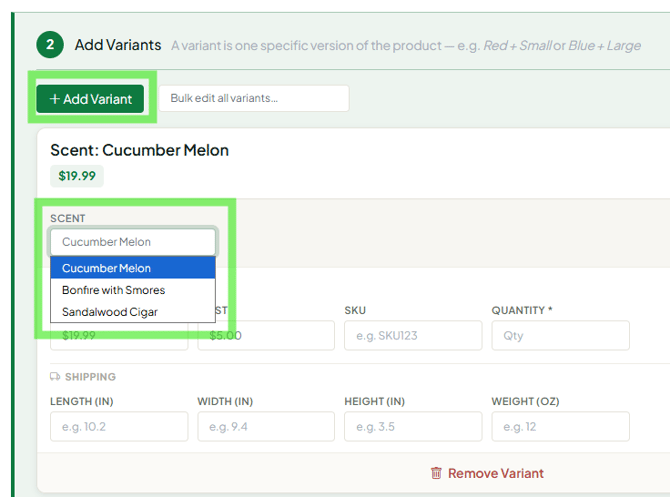
- Repeat + Add Variant once for every version you sell.
Step 4: Price, quantity and SKU for each variant
- Price and Quantity: required for each variant. The parent's quantity is the total of its variants.
- SKU: required and unique store-wide (no auto-generation). Example:
TEE01-S,TEE01-M. Keep them to 12 characters or fewer. - Cost: used for profit reports.
- Shipping: only if you sell with shipping on TrinketVault. Otherwise untick Offer Shipping on the TrinketVault tab to avoid a "missing shipping info" error.
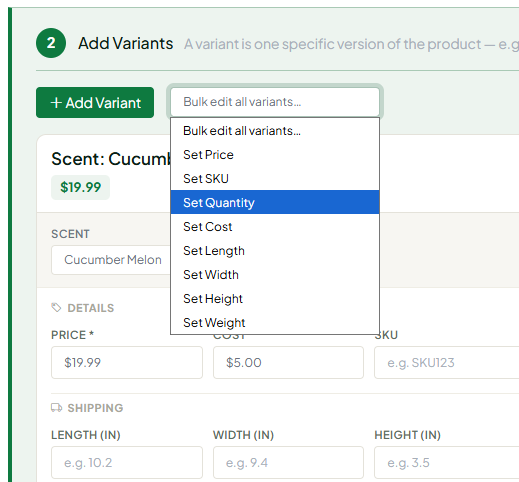
- Bulk Edit All Variants: above the variant list, pick a field (Price, Cost, Weight...), type a value and click Okay to set it for every variant.
Step 5: Save
Click Finish.
Removing variants or attributes
- Delete a single variant from its own row/menu.
- To remove an attribute, tick it and click Remove Selected Row. This regenerates the variants, and you may need to re-enter prices, quantities and SKUs.
Labels and TrinketVault
- Each variant's barcode identifies that exact variant at the register.
- Preset labels don't print the variant name. To show it, build a Custom label in the Label Designer with Variant Details.
- On TrinketVault, shoppers pick the variant on one listing; each variant's stock is separate.
Troubleshooting
- Only one variant shows: click + Add Variant again for each version and change its value in the dropdown.
- "SKU required": enter a unique SKU for every variant.
- "SKU already used": the SKU matches the parent or another item. Change it.
- "A product can have 100 variants": split the product, or contact support.
- I can't find Prefabs: your store hasn't created any. Add attributes by hand.
