
Click your avatar and choose Settings, open Notifications, turn on Sales under "Tell me about", choose how you want to hear (Email, Push to my phone, Browser notifications), then click Save notification settings.
Who this is for: Vendor
These steps use the New Experience. If your menu looks different, click Switch to New Vendor Experience at the top of the page.
Turn notifications on
- Log in at your store's address.
- Click your avatar at the top right and choose Settings (or click Settings at the bottom of the left menu).
- Click Notifications in the left list.
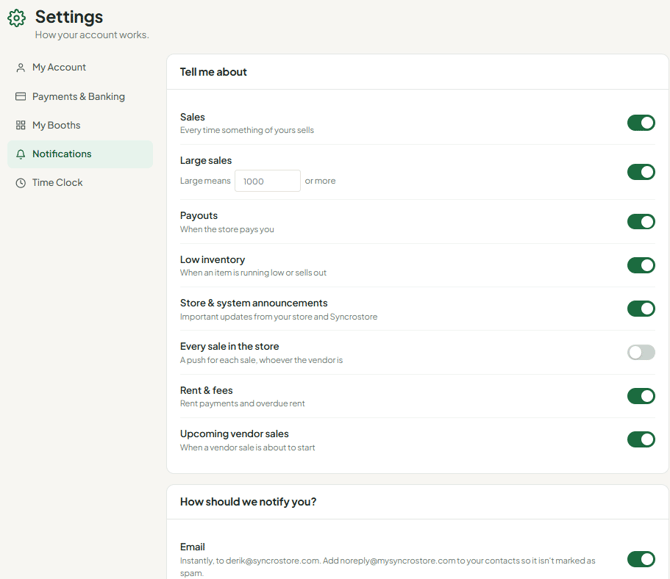
- Under Tell me about, turn on what you want: Sales, Large sales, Payouts, Low inventory and Store & system announcements.
- Under How should we notify you?, choose:
- Email: sent to your login email.
- Push to my phone: alerts in the Syncrostore phone app.
- Browser notifications: click Enable and allow notifications when your browser asks. Not available on iPhone or iPad.
- In-app notifications are always on.
- Click Save notification settings.
Good to know
- Emails go only to the email address you log in with. Adding a second address isn't supported.
- There's no automatic nightly sales summary email. Open Sales and choose Today instead.
- If you sell at more than one store, set notifications in each store. Settings are saved per store for your login, so switch stores (top bar) and save them again there. Browser notifications are the exception: they're turned on per browser.
- You can also open these settings from Notifications in the menu, using the gear icon.
Troubleshooting
- Browser notifications stopped working: go back to Settings > Notifications, click Turn off, then Enable again, save, and allow notifications when your browser asks. Check that your browser or computer hasn't blocked notifications for your store's site.
- No phone push: make sure Push to my phone is on, you're signed in to the Syncrostore app, and the app is allowed to send notifications.
- No emails: check spam and promotions folders and add support@syncrostore.com to your safe-senders list.
