
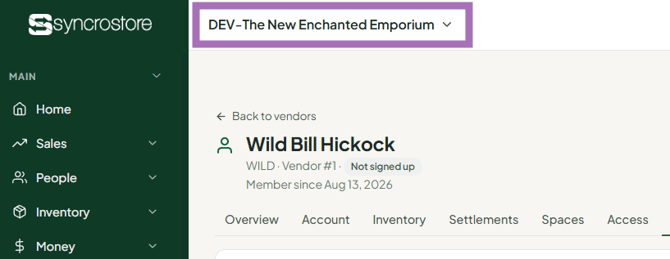
Click the store name at the top of the screen (or the store card at the bottom of the sidebar) to open Switch store or vendor, then click the store you want. You can only switch to stores where an administrator has given you access.
Who this is for: Store admins, managers and cashiers with multi-store access.
(Vendors, see "Why does my inventory go to the wrong store? (multi-store vendors)".)
These steps use the New Experience. If your menu looks different, click Switch to New Experience at the top of the page.
Switch stores
- Check the store name at the top of the screen. That's the store you're working in.
- Click the store name button (Store name ▾). You can also click the store card at the bottom of the sidebar.
- The Switch store or vendor dialog opens. Under Stores, click the store you want. If you have many stores, type in Find a store to narrow the list. Each store is tagged Staff or Vendor #N, and dedicated sites are tagged Dedicated.
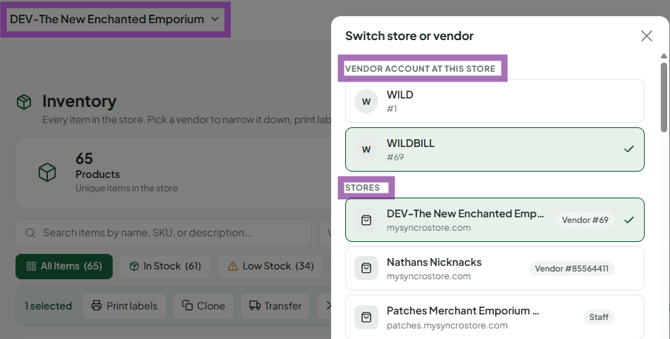
- Stores under Your stores on other sites run on their own site. Selecting one takes you there. Use the same email and password: you have one login for all your stores.
- You land on that store's home page for your role. Check the store name again before ringing sales or making changes.
When you log in, Syncrostore opens the last store you used.
For admins: give someone access to another store
- Go to Settings > Store settings and open the Multi-Store tab. Under User Store Access, choose the user and the store, then click Add (see "How do I give a user access to another one of my stores?").
- Access is one-way. Adding a user to Store B from Store A doesn't give them access back to Store A. An admin at each store must add them.
- A user can have different roles at different stores, for example Manager at one store and Cashier at another.
- You can only add users to stores where you're an Administrator.
Troubleshooting
- The store you need isn't in the list. Ask that store's admin to add you. If you were just invited, register through the invite email first.
- "Account not found" at the second store. That store doesn’t have you under this email yet. Ask its admin to add you with the email you already sign in with. Your password is the same at every store. See One Login for All Your Syncrostore Stores.
- Blank screen after you log in (single-store owner). Your role may be Super Admin, which is meant for multi-store groups. Ask support to change it to Administrator, then press Ctrl+F5.
- One login used on two registers. Don't do this. The two registers share a cart, which causes stuck "payment pending" sales. The register shows a warning banner when the same login is open on another register.
