
Store admins add each register and its card terminal in the store settings: open Settings > Overview > POS hardware, enter the terminal details in the Payment Terminals settings, press Validate, then Save.
Who this is for: Store admins and owners setting up or changing registers and card terminals. Cashiers can't change these settings.
These steps use the New Experience. If your menu looks different, click Switch to New Experience at the top of the page.
Add or edit a terminal
- Go to Settings > Overview and open the POS hardware tile. The classic Preferences page opens on the POS Hardware tab.
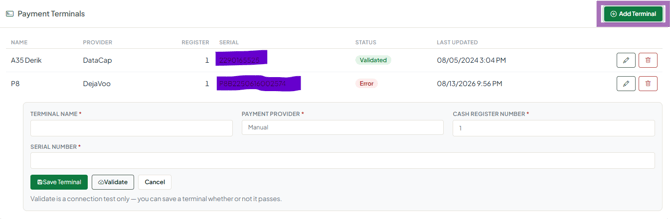
- To add a terminal, leave the Payment Terminals dropdown blank. To edit one, select it.
- Fill in the fields:
- Name: a friendly name, such as "Register 1"
- Payment Provider: the terminal type (for example Dejavoo, DataCap, or Manual/Internal for a terminal that isn't connected)
- Cash Register Number: the register this terminal belongs to
- Device ID: the terminal's device identifier
- Serial Number: printed on the terminal (required for integrated terminals)
- Press Validate. If it connects, the status shows Validated.
- Press Save.
- Open Sales > Register, refresh the page and pick the new register when prompted.
DataCap terminals: your processor or ISO builds the terminal in DataCap first. Syncrostore needs DC Direct plus the device's serial number and model.
External (Manual) terminals: use these when the card machine isn't connected to Syncrostore. The cashier runs the card on the machine, then records it on the register as Approved or Declined.
Delete a terminal
- In the Payment Terminals dropdown, select the terminal.
- Press Delete and confirm. It disappears from the register list.
Troubleshooting
- Validate fails: check the Device ID, Serial Number, Payment Provider and Cash Register Number for typos or extra spaces, then validate again.
- The terminal says it can't connect to the internet: check its Wi-Fi on the terminal. On Dejavoo terminals, swipe down from the top and long-press the Wi-Fi icon to choose the network. Support can check the terminal logs, but network fixes (internet provider, router, cabling) are on the store side.
- The terminal shows "downloading" / "encryption keys are downloading": this is a terminal-provider update. Let it finish. If it won't take cards, contact support, who can ask the provider to push an update.
- "This register's terminal is missing configuration…" on the register: finish the fields above and validate.
- "No registers are configured for this store": add at least one terminal here, then reload the register.
- Still failing: contact Syncrostore support with Store name, the terminal model and serial number.
