
Go to People > Vendors, click New vendor, fill in the vendor's details, choose what they can use, tick Email an invitation to create their account, and click Add vendor.
Who this is for: Store admins and managers.
These steps use the New Experience. If your menu looks different, click Switch to New Experience at the top of the page.
Steps
- Go to People > Vendors.
- Click New vendor. A form opens.
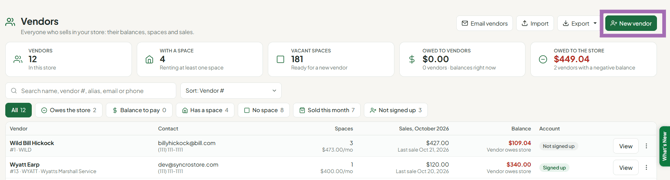
- Fill in the vendor's details:
- Vendor # - the number you use for this vendor (often the booth number). Choose carefully: it can't easily be changed later, and items and labels are tied to it.
- Alias (optional) - an alternate name or number.
- Vendor name, Business name (if any), Email (used for their login and statements), Phone, Address, City, State, Zip, Booth location detail.
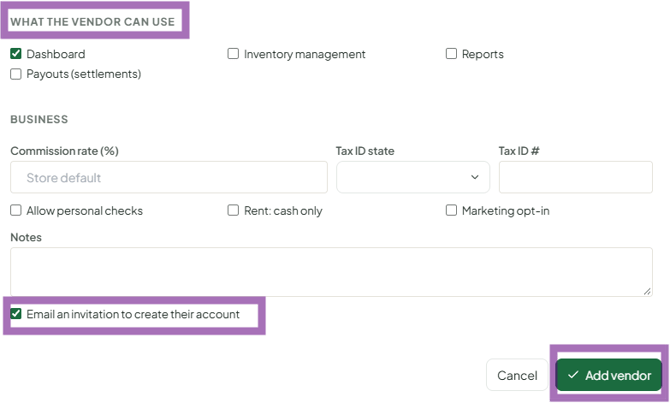
- Under What the vendor can use, tick Dashboard, Inventory management, Reports and Payouts (settlements) as needed. Most stores turn on all four.
- Under Business:
- Commission rate (%) - leave blank to use your store's default rate, or enter a custom % for this vendor.
- Tax ID state and Tax ID # - for your year-end reporting.
- Allow personal checks, Rent: cash only, Marketing opt-in, Notes.
- Tick Email an invitation to create their account and click Add vendor.
- Vendor Choice stores only: if the vendor has agreed to participate, click View on their row, open the Settings tab and turn on Card price opt-in (Vendor Choice).
Good to know
- Create vendors on People > Vendors, not People > Users.
- Someone who is both an employee and a vendor should use one login, not separate logins: add them here as a vendor, then on People > Users set their Linked Vendor to this vendor account (see How do I add a new employee login?).
- Multi-store vendors need to be added and invited at each store. Use the same email so they can switch stores with one login.
- To add many vendors at once, use Import on the Vendors page or Imports > Vendors (see How do I import my vendor list from a spreadsheet?).
Troubleshooting
- Vendor didn't get the invite: resend it from People > Users on the Invited, not signed up tab; they should check spam and log out of other Syncrostore accounts first.
- "Invalid column" or price resets to 0 while saving: type values instead of picking browser autofill suggestions.
- Wrong Vendor #: contact support with store name and Vendor- changing it yourself breaks the link to existing items.
