
Go to People > Users, click New user, enter their email and name, choose a Role, tick the option to email them an invitation, and click Save - they'll get an email to set their password.
Who this is for: Store admins. To add a vendor, use People > Vendors instead.
These steps use the New Experience. If your menu looks different, click Switch to New Experience at the top of the page.
Add a user
- Go to People > Users.
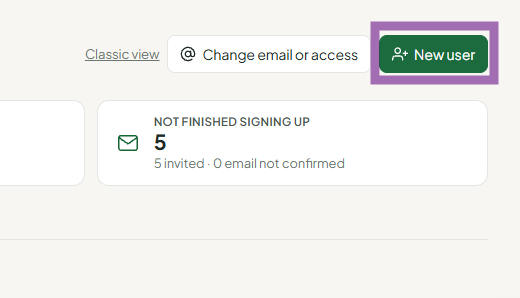
- Click New user.
- Enter:
- Email - this is their login. Check spelling and remove spaces.
- First name and Last name
- Phone and Address (optional)
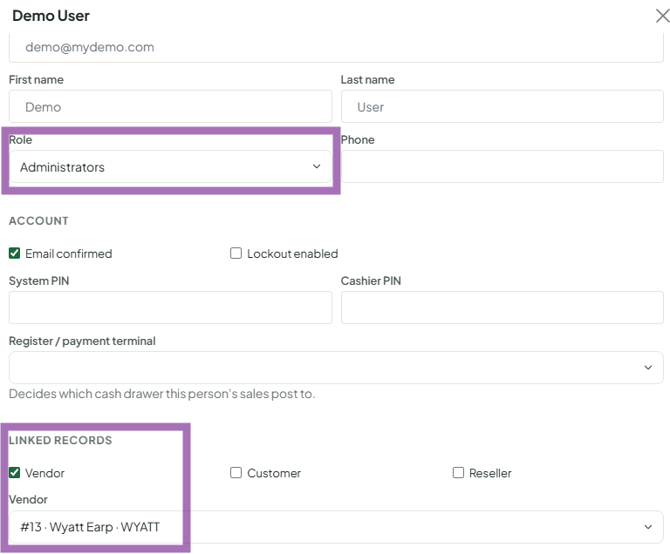
- Choose the Role: Administrator, Manager, Cashier or Vendor. You must pick one. Don't choose Super Admin unless you run a multi-store group.
- Linked Vendor: if this person is also a vendor at your store, give them one login: pick their vendor account here instead of creating a separate login. Otherwise leave it blank.
- For managers and admins who'll approve price cuts at the register, enter a four-digit System PIN. You can also set a Cashier PIN and their Register / payment terminal.
- Tick Email an invitation… and click Save.
Change an existing user's role or details
- On People > Users, click View on their row.
- Update their name, role, PINs, register or linked vendor, then click Save.
- Ask them to log out and back in for role changes to take effect.
- To change their login email, click Change email or access at the top of the Users page instead (see How do I change a vendor's email or login?).
Troubleshooting
- They didn't get the invite: resend it from the Invited, not signed up tab, and have them check spam and log out of other Syncrostore accounts before clicking the link.
- They log in to the wrong place: they must use your store's address,
<store>.mysyncrostore.com. - Staff login opens a vendor dashboard: the email is linked to a vendor record. If this person isn't also a vendor, contact support to unlink it.
