
Tick the parent item on Inventory and click Print labels. Every variant (each size or color) gets its own line under How many of each, starting at that variant's quantity in stock. Set the variants you don't need to 0 and click Print.
Who this is for: Vendors and store staff printing labels for items with sizes, colors or other variants.
These steps use the New Experience. If your menu looks different, click Switch to New Vendor Experience (vendors) or Switch to New Experience (Beta) (staff) at the top of the page.
Steps
- Go to Inventory (staff: Inventory > All items) and tick the checkbox next to the item that has variants (the parent item).
- Click Print labels in the bar that appears.
- Check the format in the Label card. To show the variant (for example, size) on the label, see "Showing the variant on the label" below.
- Under How many of each, every variant has its own line. Change the numbers as needed, and set any variant you don't want to 0.
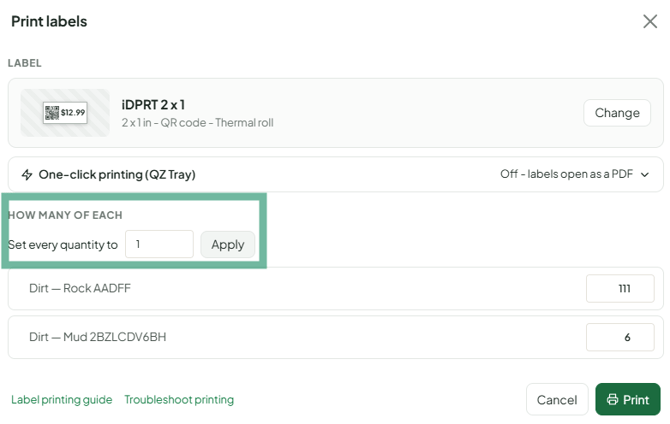
- Click Print, then print the PDF at 100% / Actual Size.
You don't need to expand the item first. Variants load into the list automatically. To see them in the table, click the arrow next to the item (Show variants).
Printing only a newly added variant
Printed status is tracked for the whole item, not for each variant. When you add a new variant, the item goes back to Needs Label and all variants show in the print list. Set the existing variants to 0 and print only the new one.
Showing the variant on the label
Standard (preset) labels show one short description line, so the variant name may be shortened or left off. The barcode still identifies the exact variant, so it scans correctly. To print the size or color clearly:
- Pick Custom size in the label picker and tick Variant details under fields to print, or
- Build a label in the Label Designer and add the Variant field, then pick it under Saved design, or
- Pick TCB 2 x 1 (Barcode on top) under iDPRT & others. It prints the variant details on their own line under the description at every store (up to about 28 characters).
Before you print: SKUs
Since June 2026, every variant needs its own unique SKU. Leave it blank to auto-generate. A simple pattern for creating is the base SKU plus a suffix, such as SHIRT-BL-M. The item form accepts up to 40 characters. Because labels encode an internal code rather than the SKU, a long SKU doesn't make the barcode harder to scan.
Troubleshooting
- Variants don't show in the print list: open the item's row menu, choose Edit item, and check the Product Variants section. Then refresh the page.
- Every variant prints when I only wanted one: set the others to 0 (see above).
- Variant labels don't scan: see How to Fix barcode labels not scanning. The barcode encodes an internal code for the variant, not your SKU.
- Variant labels stopped scanning after a transfer to another store: print new labels at the receiving store.
- The store's default label doesn't show the size: the store's saved design may not include the Variant field. Ask the store admin, or use Custom size with Variant details.
