
After an update your browser may still be using old copies of Syncrostore pages, which causes dead buttons, $0 prices and "invalid viewstate" errors; a hard refresh (Ctrl+F5 on Windows, Cmd+Shift+R on Mac) almost always fixes it.
Who this is for
- Everyone using Syncrostore in a web browser.
Signs you need a hard refresh
- Buttons (such as Edit Item or +) do nothing
- "Price must be greater than $0.00" even though you entered a price
- "Invalid viewstate" error
- Pages jump to the wrong screen, or a menu is missing
- "HTTP Error 400 - Request Too Long"
- Blank screen after logging in
Steps
- Hard refresh the page:
- Windows: Ctrl+F5 (or Ctrl+Shift+R)
- Mac: Cmd+Shift+R
- If that doesn't work, clear cached files:
- Chrome: press Ctrl+Shift+Delete (Cmd+Shift+Delete on Mac), choose Cached images and files, time range All time, then Clear data.
- Safari: Settings > Advanced > turn on "Show features for web developers," then Develop > Empty Caches.
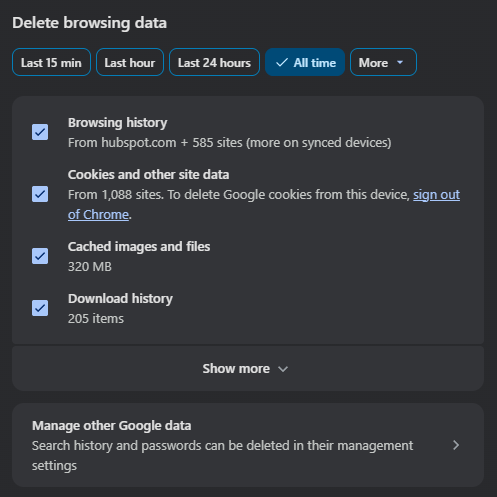
- Log out, close the browser, open it again and log back in at your store's address.
- Still broken? Try a private/incognito window. If it works there, your normal browser still has old data; clear cookies for your store's site too.
Troubleshooting
- "Request Too Long" on a shared computer: Many different logins on one browser fill it with login cookies. Use a private/incognito window for each person, or clear cookies.
- Price field resets to $0 when you pick a browser autofill suggestion: Type the price instead of choosing the suggestion.
- Site is down or very slow late at night: Syncrostore installs updates overnight, from 11 PM to 1 AM Central. This can briefly interrupt access. Try again after 1 AM Central.
- Still happening after all of the above: Contact support with your browser name, the page address and a screenshot or short video.
