
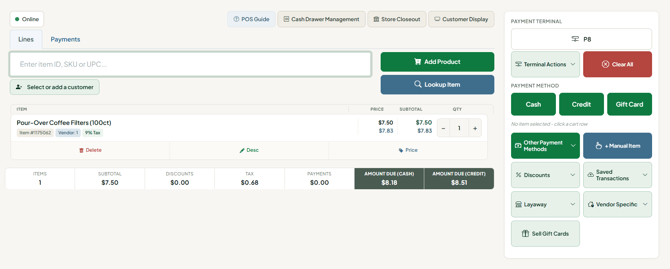
The Syncrostore register (Sales > Register) shows the sale on the left (Lines and Payments tabs, scan box, cart and totals) and payment and action buttons on the right; pick your register, scan items, press a payment button, then press New sale.
Who this is for: Cashier, Store admin
These steps use the New Experience. If your menu looks different, click Switch to New Experience at the top of the page.
Opening the register
- Log in at your store's own address,
<store>.mysyncrostore.com(not a generic Syncrostore page). - Go to Sales > Register. Cashiers and managers usually land on the register when they sign in. If the page won't load, go directly to
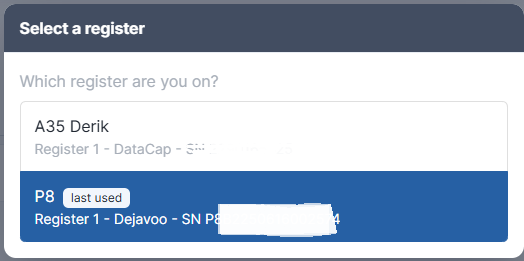
<store>.mysyncrostore.com/POS2/Register. - Pick your register when prompted. You can't ring a sale until you do. See Which register should I pick when I log in?.
The layout
- Left column - the sale. Two tabs at the top: Lines (build the sale) and Payments (every tender taken so far). Under the tabs: the scan box, Add Product and Lookup Item buttons, and Select or add a customer. Below that is the cart, then the totals panel.
- Right rail - money and actions. From the top: your register selector, Terminal Actions and Clear All, the main payment buttons (Cash, Credit, Gift Card), then Other Payment Methods, + Manual Item, Discounts, Saved Transactions, Layaway, Vendor Specific and Sell Gift Cards.
- Top-right utility bar. POS Guide (opens the help guide in a new tab), Cash Drawer Management, Store Closeout (only when store closeouts are turned on and it's time to close) and Customer Display.
Your first sale
- Scan a barcode, or type an item ID, SKU or UPC into the scan box and press Enter. Repeat for every item.
- Press Cash, Credit or Gift Card and follow the prompts.
- On the Sale complete window, press New sale.
Time savers
- The cursor always returns to the scan box after you add an item, close a window or change a quantity.
- Messages appear at the top for about two and a half seconds. Green means it worked, red means it didn't. Only one shows at a time.
- The cart is stored on the server, not in your browser. Reload the page or log in on another machine as the same cashier and the sale is still there.
- The top-bar "/" search shortcut is turned off on the register, so a scanned "/" can't jump out of the scan box.
Troubleshooting
- No Check button: an admin must turn on Allow Check Payments on the Financial tab of Settings > Store settings and save. It was switched off when stores moved to the new register. Then use Other Payment Methods > Check.
- Items or payments appear that you didn't add / "payment pending": your login is open on another register and both share one cart. Every register needs its own login; log out (avatar menu at the top right > Log out) before moving.
- The register selector or customer display window keeps popping up: this is intentional so card payments go to the right terminal. On a laptop with no second screen, the customer display opens as a window - you can minimize it.
- Buttons don't work or prices show $0 after an update: hard refresh (Ctrl+F5 on Windows, Cmd+Shift+R on Mac).
- Looking for a past sale, a return or a void? Those aren't on the register - use Sales > Transactions.
