
No. The barcode on a Syncrostore label encodes an internal code that isn't shown or exported, so for other systems or your own counts use your SKU, UPC or Item ID, or print your own barcodes from those values.
Who this is for: Vendors who want to scan Syncrostore labels in another app (like Square), do a physical count in a spreadsheet, or map items to another system.
These steps use the New Experience. If your menu looks different, click Switch to New Vendor Experience at the top of the page.
What's on the barcode
Syncrostore labels encode a global item code that Syncrostore assigns to each item and variant. That's why a label keeps scanning after you change the SKU. It is intentionally not included in exports and isn't displayed. See What is Being Encoded in the Barcode?
Options
- Find an item by scanning its label inside Syncrostore: on Inventory, open More (⋮) > Classic view, click the Scan Universal ID box (top right) first, then scan. Scanning into a normal search box won't find it.
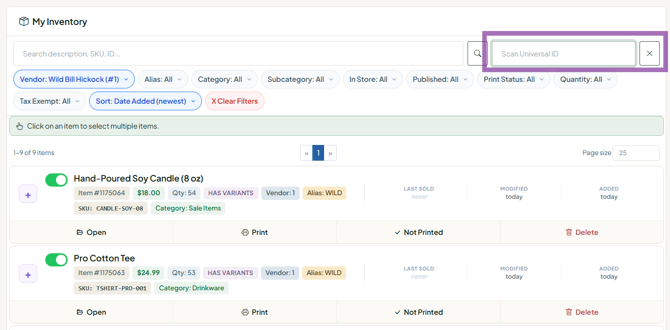
- Use another system or spreadsheet: on Inventory, click Export and choose CSV or Excel (.xlsx), then match on SKU, UPC or Item ID. These all also scan and search at the Syncrostore register.
- Use your own barcodes: if you print barcodes yourself, encode the item's SKU (or UPC/Item ID). Store that value in the item's SKU or UPC field so it rings up at the register. Syncrostore-generated labels are still recommended.
Troubleshooting
- Self-printed SKU barcode won't scan: Use uppercase letters; lowercase can break 1D barcodes. UPCs must be digits only.
- Two items come up for one scan: The register asks the cashier to pick the matching item. Compare description, price and vendor.
- The export doesn't include variant quantities: that's a known limit of the inventory export. Check variant quantities on Inventory by clicking the arrow next to the item (Show variants).
