
The quickest way to find a label printing problem is to look at the PDF Syncrostore makes. If the PDF looks right, the problem is your printer, driver or print settings. If the PDF looks wrong, contact Syncrostore support.
Who this is for
- Vendors and store staff whose labels print blank, sideways, cut off, too small or not at all
Step 1: Get the PDF
- If QZ Tray (one-click printing) is on, turn it off: in the Print labels window or ⋮ > Label settings, open One-click printing (QZ Tray) and clear the printer so it reads "Off – labels open as a PDF". You can also right-click the QZ Tray icon in the system tray and choose Exit.
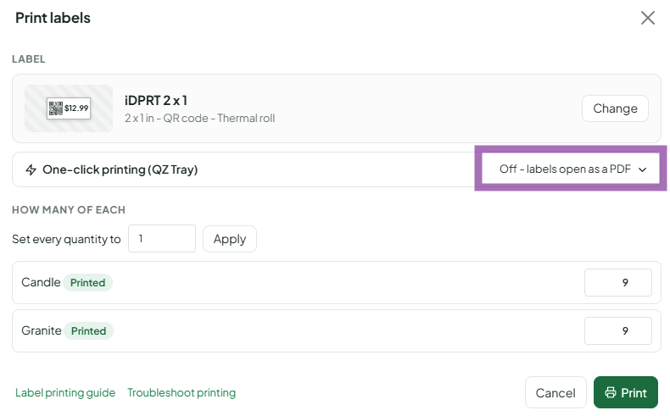
- Print your labels again. The PDF opens in a new tab. If nothing opens, allow pop-ups for Syncrostore.
Step 2: Check the PDF
The PDF looks correct if:
- each label is the right size and on its own page (inkjet sheets show a full sheet of labels)
- nothing is cut off or overlapping
- the barcode looks sharp when you zoom in
If so, Syncrostore made the labels correctly, and anything wrong on paper comes from the printer, driver or print settings. QZ Tray uses your printer's existing settings too. It doesn't change label size, scaling or rotation.
The PDF looks wrong if content is cut off, overlapping or the wrong size for the label you picked. First check that you picked the right label in Syncrostore. If you did, contact support with a copy of the PDF and the label you chose.
Step 3: If the PDF is right but the printout isn't
Check these in order:
- The label you picked in Syncrostore matches the labels loaded in the printer. This is the most common cause.
- The printer's own paper size matches the label, in Windows Printing preferences or the macOS print dialog, with rotation/orientation 0 / Portrait and offset 0. DYMO printers detect their label size. iDPRT, Zebra and TSC printers don't.
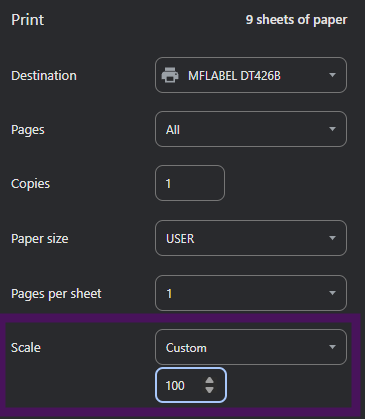
- Print at 100% / Actual Size. Turn off "Fit to Page" and "Fit to Printable Area". This is the #1 cause of inkjet-sheet rows drifting down the page.
- On a Custom size label, the Printer type matches your printer (iDPRT & other vs. Dymo LabelWriter).
- Your computer can print a test page to the printer. If it can't, the printer or driver isn't installed correctly. Reinstall the driver for your exact model and restart.
- Try another browser (for example, Edge instead of Chrome) and hard refresh (Ctrl+F5).
If the barcode is sharp in the PDF but won't scan
The cause is usually print darkness, speed or scaling. See How to Fix barcode labels not scanning. If you chose a QR code, the store's scanners must read 2D codes.
What support can and can't help with
Syncrostore support can confirm your PDF is generated correctly and that print jobs are sent. Support tests and supports the iDPRT SP310/SP320 and DYMO LabelWriter. Support can't set up printer drivers, operating-system printer settings or other printer brands (such as TSC, Zebra, Munbyn or Niimbot), and can't troubleshoot your computer, network or cables. For those, contact the printer maker or local IT.
When you contact support, include a screenshot of the PDF, the label you picked, your printer make and model, and a photo of the printed label.
