
Open the report, scroll down below its charts to the data grid, click Columns in the grid's toolbar and tick the columns you want. Whatever columns you show are what Export includes.
Who this is for: Vendor, Store admin
These steps use the New Experience. If your menu looks different, click Switch to New Vendor Experience (vendors) or Switch to New Experience (staff) at the top of the page.
The detailed reports (vendor and admin) have a chart summary at the top and a data grid below it. This article covers the grid. To move or hide the charts and cards, see "How do I rearrange or hide cards on my dashboard and reports?".
Vendors: the new Sales page already includes SKU and Sale # columns, and its Export ▾ (CSV, Excel or PDF) includes them. Use the steps below only for the detailed reports.
Open a report
- Vendors: go to Reports and choose a report, for example Sales report under How are my sales?
- Staff: go to Reports and choose a report tile, for example Vendor Sales under Vendors.
The grid's controls
- Set the report's date range.
- Scroll down past the charts to the grid. Its toolbar, at the top left of the grid, has a Search box and a Columns button.
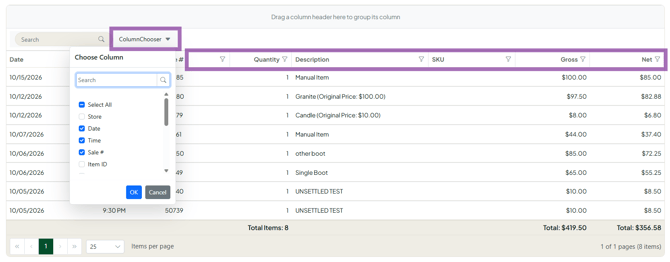
Changes apply as soon as you make them.
Sort
Click a column heading to sort by it. Click again to reverse the order.
Group
Drag a column heading into the bar above the grid ("Drag a column header here to group its column"), for example Transaction Date or Description. Rows with matching values are grouped; click a group's arrow to expand it. Drag the heading back out to undo.
Tip: to see sales for each variant, group by Description.
Filter
- Click the funnel icon on a column heading, for example the vendor column.
- Choose a condition (such as Equal, Contains or Starts With), enter the value, and click Filter. Click Clear in the same menu to remove it.
Use these column filters, not the Search box, when you want to narrow a report to one vendor.
Choose columns (and what gets exported)
- Click Columns in the grid's toolbar.
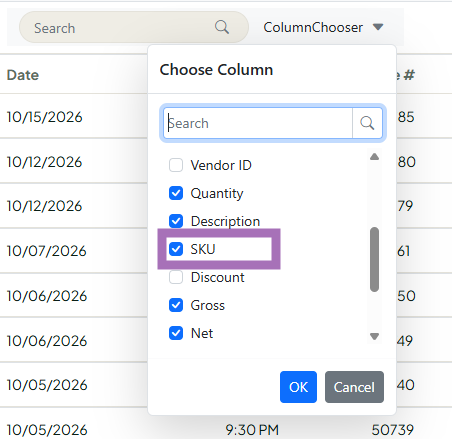
- Check the columns you want to see, for example SKU, and uncheck the ones you don't.
- Click Export and choose PDF, CSV or Excel from the drop-down. The export includes the columns you've chosen.
The two Sales by Category reports still use the older grid: there, click Filter, Sort, and Choose Columns, make your changes in the pop-up, and press the green check mark to apply them.
Troubleshooting
- Rows seem to be missing. Check for column filters (a highlighted funnel icon) or grouping on the grid, and check the date range.
- I need SKUs in my sales export. Vendors: export from the Sales page, which includes SKU. Otherwise add SKU with the grid's Columns button, then export.
- Export does nothing. Hard-refresh the page (Ctrl+F5) and try again. If it still fails, contact support.
- Reports aren't official tax documents. Use them for your own records.
