
Saved discounts are the ones your cashiers apply with a single press. Set up the ones you use regularly and there's no typing, no arithmetic, and no inconsistency between staff.
Who can create them
Administrators and Managers only. Cashiers see the saved list and can apply from it, but the creation form is hidden for them and the server refuses the request even if it somehow reaches it.
Creating one
Open Discounts → Apply Discounts and scroll to "Create a saved discount".
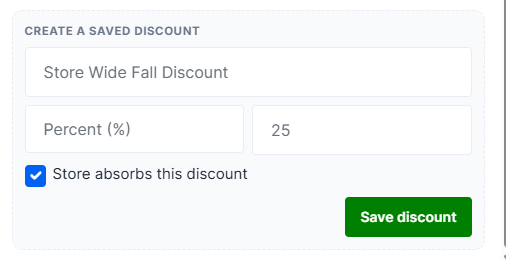
| Field | Notes |
|---|---|
| Name (optional) | What cashiers will see. Leave blank and it shows as "Discount" — name it |
| Method | Percent (%) or Amount ($) |
| Value | 1–99 for a percentage |
| Store absorbs this discount | Store takes the hit rather than the vendor |
Press Save discount. It appears in the list above immediately and the window stays open so you can add several in a row.
There's no "set new price" option for saved discounts — that only makes sense against a specific item, and saved discounts always apply to the whole sale.
A few things to watch
- Names aren't checked for duplicates. Save "Staff Discount" twice and you'll have two identical entries. Check the list before adding.
- A blank name shows as "Discount" — unhelpful when there are several. Always name them.
- Saved discounts apply to the whole sale. For a single item, cashiers should use the manual discount instead.
Deleting one
Managers and admins get a small red × next to each saved discount. There's no confirmation. Deleting doesn't affect sales that already used it.
What cashiers see
In the discounts list: the name, then the discount, then "Store-Absorbed" if flagged — for example "Staff Discount - 20% off - Store-Absorbed".
