
When a payment covers the balance, the sale completes: the receipt prints automatically if this computer has a receipt printer set up through QZ Tray, it's emailed if the customer on the sale has an email address, and the drawer opens if the sale included cash.
Who this is for: Cashiers finishing sales; store admins setting up receipt printers and cash drawers.
These steps use the New Experience. If your menu looks different, click Switch to New Experience at the top of the page.
When the sale completes
- The Sale complete window appears.
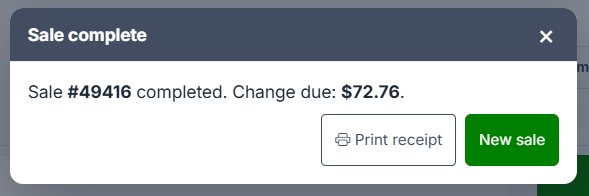
- Press New sale to start the next customer. The cart has already cleared.
What happens automatically:
- Email receipt: sent only if a customer with an email address is attached. If not, nothing is sent and no warning appears.
- Printed receipt: prints only if QZ Tray is running and a receipt printer is set up on this computer.
- Cash drawer: opens if the sale included any cash, including a card-and-cash split.
Print receipt prints again. If no receipt printer is set up, the receipt opens in a browser tab so you can print it. It doesn't re-send the email.
Change due appears only when the sale was finished with cash.
Receipt barcode: every receipt has a barcode of the transaction number. Scan it to look up a sale or start a return.
Reprint an older receipt
- Go to Sales > Transactions.
- Search for the transaction (transaction #, customer, vendor, item or SKU) and click View.
- In the drawer, press Receipt. You can also press Open transaction to reprint from the full transaction page.
Set up the receipt printer and cash drawer (admins)
Do this on each register computer. It's saved per computer, and only admins can change it.
- Install QZ Tray from qz.io/download, restart the computer and make sure QZ Tray is running.
- Go to Settings > Overview and open the POS hardware tile. The classic Preferences page opens on the POS Hardware tab.
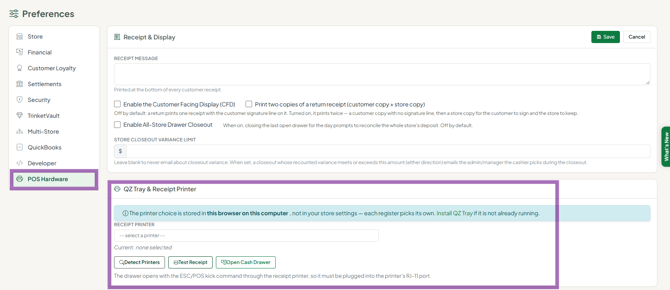
- Under QZ Tray & Receipt Printer, click Detect Printers and select the receipt printer.
- Press Test Receipt, then press Open Cash Drawer to test the drawer.
Troubleshooting
- Receipts stopped printing (after a paper change, an update or a restart): open the POS Hardware tab again and select the receipt printer again, even if it already looks selected. QZ Tray updates can clear it.
- Cash drawer doesn't open on cash sales: the drawer opens through the receipt printer. Select the receipt printer again on the POS Hardware tab and test it. In Windows Printers & scanners, untick Let Windows manage my default printer and set the receipt printer as the default. Check the drawer cable is in the printer's drawer port.
- "Cannot verify trust – invalid signature" pop-up, or Allow signs you out: install the latest QZ Tray, restart the computer, sign in, print a receipt and choose Remember this decision + Allow.
- Nothing prints and no pop-up appears: allow pop-ups for Syncrostore and hard refresh (Ctrl+F5). Check that QZ Tray is running in the system tray.
- Only the label printer is set up: a label printer can't print receipts. Set a receipt printer on the POS Hardware tab.
