
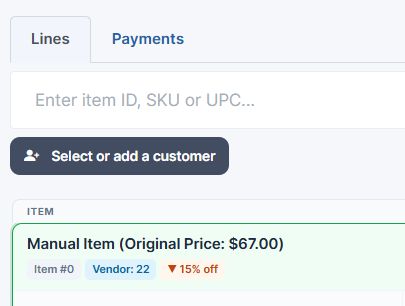
Press Select or add a customer under the scan box (after at least one item is on the sale), search by name, phone or email, and click the customer to attach them.
Who this is for: Cashiers using the register (Sales > Register).
Why attach a customer
- They earn and can spend loyalty points (if your store uses the loyalty program).
- The receipt is emailed automatically if they have an email on file.
- Tax exemption applies automatically if they are set up as a reseller.
- The sale is recorded in their purchase history.
Attach an existing customer
- Scan at least one item first. On an empty sale you'll see "Scan an item before adding a customer."
- Press Select or add a customer.
- Type in "Search name, phone, or email" and press Enter or Search.
- Phone punctuation is ignored (5551234 finds (555) 123-4567).
- You get the first 25 matches, sorted by last name. Searching with an empty box lists your first 25 customers.
- Click the customer. You'll see "Customer added: Jane Smith".
The button then shows the customer's name, their live loyalty point balance, and TAX EXEMPT if they are a reseller.
Add a new customer
- In the same window, scroll to Add a new customer.
- Enter at least a first or last name. Phone, email and address are optional.
- Press Add & attach.
New customers start with zero points and are never tax exempt. To make someone a reseller, open Sales > Customers, click View on the customer, edit their details and tick Reseller (buys for resale) in the Reseller & ID section. See How do I make a customer tax exempt (reseller)?.
Remove a customer
Open the window again and press Remove current customer. There's no confirmation. The items stay. Any tax exemption is removed.
Troubleshooting
- The reseller dropdown is gone: resellers are now found in this same customer search window.
- The customer isn't earning loyalty points: an admin should check the loyalty program is on. Go to Settings > Store settings, open the Customer Loyalty tab, and check Loyalty Program is on (to turn it on, click Edit, tick Enable the loyalty program, and click Save).
- No receipt email arrived: the customer needs an email address on their profile (Sales > Customers > View > Details).
- Tax wasn't removed: the customer's Reseller (buys for resale) box isn't ticked.
