
Note: Adding Syncrostore support will reach out only for support tickets and important software updates. We will never use the support email for any other purposes
It is completely optional to add us to your Safe-Senders list; however, it will become significantly more difficult to offer support and to keep you in the loop about new updates (features, bug fixes, etc.) if you do not. This is because your email provider may mistake the Support emails as spam, potentially preventing you from receiving responses to tickets you may have opened.
Outlook:
- If you have more than one account added to new Outlook, select the account you want to add the settings to.
-
Select Settings
 > Mail > Junk email.
 -
Under Junk email, scroll down to Senders, and select the Safe senders and domains tab.
-
Select + Add safe sender, and enter the email address for the recipient you want to add.
-
Select OK, and then select Save.
Gmail:
How to Add an Email Address to the Safe Senders List on Desktop
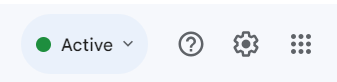
- Select the “Contacts” app in the "Google Apps" popup. It should be in the top right corner of your screen as a 3x3 matrix of dots. This will redirect you to the appropriate menu screen.
- Select “Create Contact.” This option will be at the upper left corner of your screen.
- Enter the email address (support@syncrostore.com).
- Save the information to your address book.
How to Add Contacts to the Safe Senders List on the Mobile App
- Select the drop-down menu at the upper left corner of your screen. It resembles three stacked horizontal lines.
- Scroll down and select the “Contacts” tab. You’ll find it below your inbox folders. This will open a new application.
- Select “Add.” The button will be at the bottom right corner of your screen.
- Enter the email address (support@syncrostore.com).
- Save the information to your trusted contacts
Yahoo:
Yahoo does not have an explicit whitelist for senders, instead it uses your contacts as an automatic whitelist. To add support@syncrostore.com as a contact:
- On the right right panel in New Yahoo Mail, click Contacts.
- Click the All tab.
- Click the More options icon
 .
. - Click Add a new contact.
- Enter the contact's info (support@syncrostore.com)
- Click Save.